
Introduction
TL;DR Sales reps lose hours every week on manual data entry. They pull a contact from a prospecting tool. They copy the name. They copy the email. They paste it into HubSpot. Then they do it again for the next lead. The Seamless.AI HubSpot integration removes this entire process. It connects your prospecting data straight into your CRM. No copy-paste. No wasted hours.
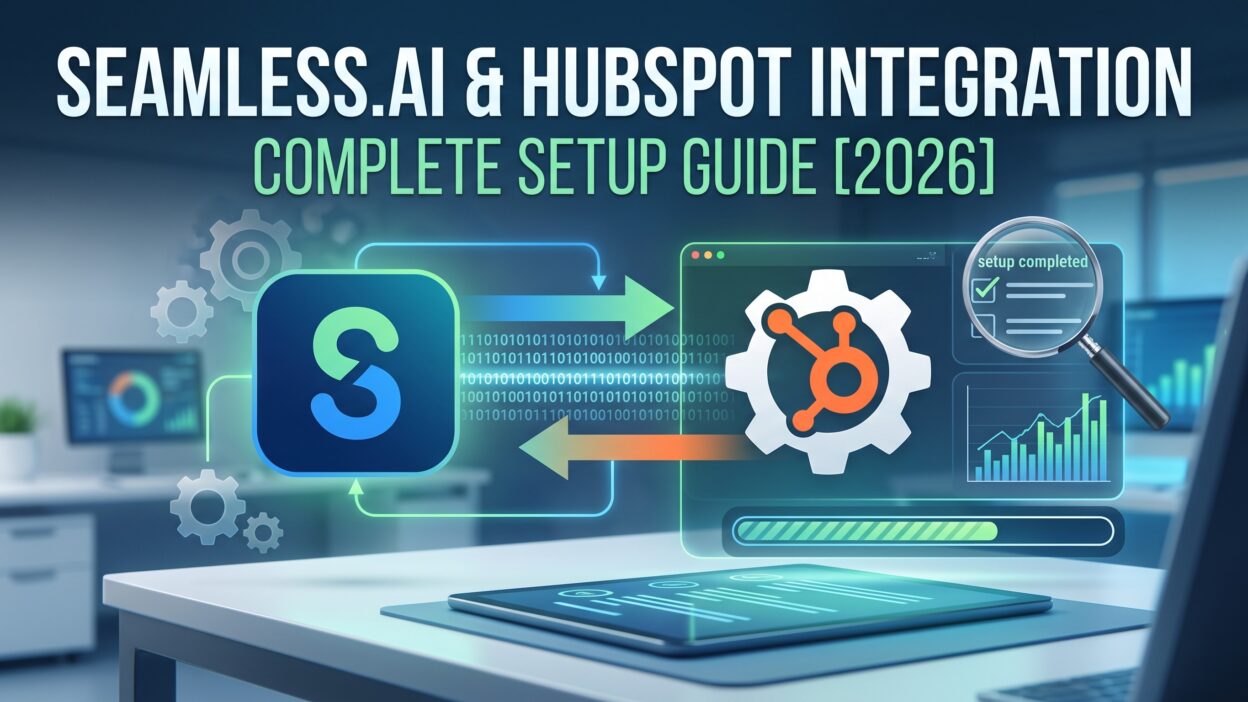
This guide covers the full setup process for the Seamless.AI HubSpot integration. You will learn what the integration does, how to install it, how to map your fields, and how to fix common errors. You will also find pricing details and a full FAQ section at the end. By the time you finish reading, you will have a working Seamless.AI HubSpot integration ready to use.
Table of Contents
What Is Seamless.AI
Seamless.AI is a sales prospecting tool. It finds verified emails and phone numbers for business contacts. Sales teams use it to build lead lists fast. Marketing teams use it to enrich existing contact records. The platform pulls data from public sources and validates it in real time. This means the contact details you pull are accurate at the moment you pull them.
Seamless.AI also comes with a Chrome extension. You can find a contact while browsing LinkedIn and pull their verified email in seconds. This makes the tool popular with outbound sales teams who need fresh leads every day.
What Is HubSpot CRM
HubSpot is a customer relationship management platform. Sales teams use it to track deals. Marketing teams use it to manage campaigns. Support teams use it to log tickets. Every contact record in HubSpot holds the full history of that relationship. Emails sent. Calls logged. Deals opened and closed.
HubSpot works well as a central hub for customer data. But it only holds the data you put into it. This is where the Seamless.AI HubSpot integration becomes useful. It feeds fresh, verified contact data directly into your HubSpot records.
Why Connect Seamless.AI with HubSpot
Manual data entry slows down your sales process. A rep spends ten minutes finding a lead. Then spends five more minutes entering that lead into HubSpot. Multiply this by fifty leads a week. That adds up to hours of lost selling time.
The Seamless.AI HubSpot integration solves this problem directly. You find a contact in Seamless.AI. You push that contact into HubSpot with one click. No copy-paste. No typos. No missed fields. Your reps spend their time selling instead of typing.
The integration also keeps your CRM data fresh. Seamless.AI verifies emails and phone numbers before you push them. Bad data never enters your HubSpot database. This keeps your sales pipeline clean and your email deliverability high.
Key Benefits of Seamless.AI HubSpot Integration
The Seamless.AI HubSpot integration gives your team a real speed advantage. Reps build lead lists faster. They push those leads into HubSpot without extra steps. This shortens the gap between finding a prospect and reaching out to them.
Data accuracy improves as well. Seamless.AI checks emails against live databases before you export them. This cuts down on bounced emails once your outreach starts. Your sender reputation stays healthy because you send fewer emails to dead addresses.
The integration also supports better reporting. Every contact you push from Seamless.AI carries source data into HubSpot. Your marketing team can then track which prospecting efforts turn into closed deals. This gives leadership a clear view of return on investment.
Team alignment gets stronger too. Sales and marketing often work from separate lists before this integration exists. Once Seamless.AI and HubSpot connect, both teams pull from one shared, updated contact pool. Nobody works from outdated spreadsheets anymore.
Before You Start: Requirements and Prerequisites
You need an active Seamless.AI account before you start the setup process. A free trial account works for testing, but full sync features usually need a paid plan. Check your current plan under account settings inside Seamless.AI.
You also need a HubSpot account with admin permissions. Integration settings sit inside HubSpot’s app marketplace, and only admin users can approve new app connections. If you are not an admin, ask your HubSpot admin to grant access or complete the connection for you.
Your HubSpot subscription tier matters too. Some CRM fields and workflow tools only appear on Professional or Enterprise plans. Check your current HubSpot tier before you map custom fields, since missing fields can break your Seamless.AI HubSpot integration setup halfway through.
Seamless.AI HubSpot Integration Setup Guide
This section walks through the exact steps for the Seamless.AI HubSpot integration. Follow each step in order. Skipping steps often causes sync errors later.
Create Your Seamless.AI Account
Go to the Seamless.AI website and sign up for an account. Enter your work email and set a password. Verify your email through the confirmation link. Once inside your dashboard, complete your profile details. This step takes less than five minutes.
Locate the HubSpot Integration Option
Inside your Seamless.AI dashboard, open the settings menu. Look for the integrations tab. Click on it. You will see a list of supported platforms including HubSpot. Click the HubSpot icon to begin the connection process.
Authorize Seamless.AI Access to HubSpot
Seamless.AI will redirect you to a HubSpot login screen. Log into your HubSpot account using your admin credentials. HubSpot will show a permissions screen listing what Seamless.AI can access. Review the list and click approve. This step links your two accounts together.
Map Your Fields
Once connected, Seamless.AI will ask you to map its data fields to your HubSpot properties. Match the email field to your HubSpot email property. Match the phone field to your HubSpot phone property. Map job title, company name, and any custom fields your team tracks. Accurate field mapping prevents duplicate or blank records later.
Set Your Sync Preferences
Choose how often you want data to sync between the two platforms. Some teams prefer real-time sync for every new contact. Other teams prefer a scheduled sync once a day. Pick the option that matches your team’s workflow. You can change this setting later if needed.
Test the Connection
Push one test contact from Seamless.AI into HubSpot. Open your HubSpot contacts list and confirm the record appears correctly. Check that every field matches what you mapped in step four. If something looks wrong, go back and adjust your field mapping before pushing more contacts.
How to Push Seamless.AI Leads into HubSpot
Once your Seamless.AI HubSpot integration is active, pushing leads becomes simple. Search for a contact inside Seamless.AI using filters like industry, job title, or company size. Review the results and select the contacts you want.
Click the export button and choose HubSpot as your destination. Seamless.AI sends the contact data directly into your CRM using the field mapping you set earlier. The new record appears in HubSpot within seconds for real-time sync setups.
You can also push leads in bulk. Build a list of fifty or a hundred prospects inside Seamless.AI. Select them all and export the entire batch into HubSpot at once. This saves significant time compared to pushing contacts one by one.
How to Sync Contacts Between Seamless.AI and HubSpot
Syncing works in two directions depending on your settings. Seamless.AI can push new contact data into HubSpot as you find leads. HubSpot can also flag existing contacts for enrichment through Seamless.AI.
If a HubSpot record is missing a phone number, Seamless.AI can search for that number and update the record. This keeps your existing database fresh instead of only adding new contacts. Old records get updated. Missing fields get filled. Your CRM stays accurate over time.
Set a sync schedule that fits your data volume. High-growth teams with hundreds of new leads a week often choose real-time sync. Smaller teams with steady lead flow often choose a daily or weekly batch sync instead.
Common Setup Issues and Fixes
Some users run into a permissions error during authorization. This usually happens when the HubSpot account lacks admin rights. Log in with an admin account and repeat the authorization step.
Duplicate contacts sometimes appear after the first sync. This often traces back to mismatched field mapping, especially with the email field. Go back into your integration settings and confirm the email field maps correctly on both platforms.
Sync delays happen occasionally during high traffic periods. If contacts take longer than expected to appear in HubSpot, check your sync frequency setting first. A scheduled sync will always show delay compared to real-time sync. Switch to real-time sync if speed matters most to your team.
Missing custom fields cause another common issue. If your HubSpot account uses custom properties, Seamless.AI needs those properties created in HubSpot before mapping can work. Create the custom property in HubSpot first, then return to your Seamless.AI field mapping screen.
Best Practices for Seamless.AI HubSpot Integration
Review your field mapping every few months. Teams often add new HubSpot properties over time, and your Seamless.AI integration needs updates to match those changes. A quick monthly check prevents data gaps.
Clean your contact list regularly inside HubSpot. Even with verified data from Seamless.AI, some contacts change jobs or update their emails. Run a data cleanup every quarter to remove outdated records.
Train your sales team on the export process. A smooth Seamless.AI HubSpot integration only works well if reps use it correctly. Show new hires exactly how to search, select, and push contacts during onboarding.
Set clear rules for duplicate handling. Decide as a team whether Seamless.AI should skip duplicate contacts or update existing records with new data. This single setting prevents a lot of cleanup work later.
Monitor your sync logs. Most integration dashboards show a log of recent syncs and any errors. Check this log weekly during your first month to catch small issues before they grow into bigger problems.
Seamless.AI HubSpot Integration vs Manual Data Entry
Manual data entry feels simple at a small scale. A rep finds five leads a day and enters them by hand. This works fine when volume stays low. But most growing sales teams outgrow this method fast.
The Seamless.AI HubSpot integration removes the bottleneck entirely. Reps search for leads and push them into HubSpot in one motion. There is no typing, no copy-paste, and no risk of a mistyped email breaking your outreach.
Manual entry also increases the risk of stale data. A rep enters a phone number today, and that number might already be outdated. Seamless.AI verifies data at the moment of export, which manual entry can never guarantee.
Time savings tell the real story here. A rep who manually enters thirty contacts a week might spend two to three hours on that task alone. The same rep using the Seamless.AI HubSpot integration finishes that work in a fraction of the time, leaving more hours for actual selling.
Pricing and Plans for Seamless.AI HubSpot Integration
Seamless.AI offers a free plan with limited credits each month. This plan works for testing the integration but will not support heavy prospecting volume. Paid plans unlock higher credit limits and full integration features, including direct HubSpot sync.
Pricing scales based on team size and credit needs. Smaller sales teams often start on a basic paid tier, while larger teams with high-volume prospecting move to a higher tier for more credits and users. Enterprise teams can request custom pricing based on specific needs.
HubSpot pricing runs separately from Seamless.AI. Your HubSpot subscription tier affects which CRM fields and workflow automations you can use alongside the integration. Check both pricing pages before committing, since your total cost includes both platforms.
Most teams find the return on investment clear within the first month. Time saved on manual entry alone often covers the cost of both subscriptions, especially for teams with five or more sales reps actively prospecting.
Seamless.AI Chrome Extension and HubSpot Together
Many reps rely on the Seamless.AI Chrome extension during their daily prospecting work. This extension sits on top of LinkedIn and company websites. It pulls verified contact details while you browse, without switching tabs.
Paired with your Seamless.AI HubSpot integration, this extension becomes a strong daily tool. A rep finds a decision maker on LinkedIn. The extension reveals a verified email and phone number instantly. One click sends that contact straight into HubSpot, already mapped to the correct fields.
This workflow removes almost every manual step between finding a prospect and logging that prospect in your CRM. Reps stay inside their browser the entire time. They never open a separate spreadsheet or paste data by hand.
Sales managers often see faster pipeline growth once reps adopt this combined workflow. Fewer steps mean more prospects touched per day. More prospects touched per day means a fuller pipeline by the end of each week.
Use Cases by Team
Different teams get different value from the Seamless.AI HubSpot integration. Sales development reps use it most for cold outbound work. They build target lists by industry and job title, then push fresh contacts into HubSpot sequences within minutes.
Account executives use the integration differently. They often pull additional contacts from a target account to find other stakeholders. A single deal might involve five or six buyers, and Seamless.AI helps surface each one before pushing them into the deal record inside HubSpot.
Marketing teams use the integration for list building and enrichment. A campaign manager might need updated job titles for a segment of contacts before sending a targeted email. Seamless.AI can refresh that data and sync it back into HubSpot without manual research.
Revenue operations teams often manage the integration itself. They set field mapping rules, monitor sync logs, and keep data governance consistent across both platforms. A strong Seamless.AI HubSpot integration setup usually starts with clear ownership from this team.
Security and Data Compliance Considerations
Data governance matters once you connect two platforms that both hold customer information. The Seamless.AI HubSpot integration uses HubSpot’s official app marketplace for authorization, which means access follows HubSpot’s existing permission structure.
Admins should review which team members can push data through the integration. Not every rep needs full export access. Some companies limit this permission to senior reps or team leads to reduce the risk of accidental duplicate pushes.
Compliance teams should also review how contact data gets sourced. Seamless.AI pulls from public and verified databases, but your company may have specific rules around outbound contact lists depending on your industry and region. Check these rules before scaling your outbound volume through the integration.
Regular audits help keep this process clean. Export a report of contacts pushed through the integration each month. Review that report for accuracy and compliance with your internal data policies.
Measuring Success After Setup
A working Seamless.AI HubSpot integration should show measurable results within a few weeks. Track how many new contacts enter HubSpot through the integration each week compared to your prior manual process.
Watch your email bounce rate as well. Verified contact data from Seamless.AI should lower your bounce rate over time. A dropping bounce rate signals that your data quality has improved since connecting the two platforms.
Sales cycle length is another useful metric. Faster access to verified contacts often shortens the time between prospecting and first meeting booked. Compare your average sales cycle before and after adopting the integration to see this impact directly.
Rep adoption matters just as much as the technical setup. Survey your team a month after rollout. Ask whether they find the Seamless.AI HubSpot integration faster than their old process. Low adoption usually points to a training gap rather than a tool problem.
Frequently Asked Questions
Does the Seamless.AI HubSpot integration work with the free HubSpot plan? Basic contact sync works on most HubSpot tiers, but some advanced field mapping options need a paid HubSpot plan. Check your specific tier for full compatibility.
How long does the Seamless.AI HubSpot integration setup take? Most users finish the full setup in under fifteen minutes. This includes account creation, authorization, and field mapping.
Can I undo a sync if I push the wrong contacts into HubSpot? Yes. You can delete pushed contacts directly inside HubSpot. Seamless.AI does not automatically remove them, so manual cleanup is required.
Does the integration update existing HubSpot contacts or only add new ones? Both. You can configure Seamless.AI to enrich existing records or only add new contacts, depending on your sync settings.
Is the Seamless.AI HubSpot integration safe for sensitive customer data? Seamless.AI uses standard authorization protocols through HubSpot’s official app marketplace. Only approved admin users can authorize the connection, which keeps access controlled.
Can multiple sales reps use the same Seamless.AI HubSpot integration? Yes. Once an admin sets up the integration, team members with proper permissions can use it to push leads into shared HubSpot lists.
What happens if my Seamless.AI credits run out mid-sync? The sync pauses once your credits reach zero. You will need to upgrade your plan or wait for your monthly credit reset to continue pushing new contacts.
Scaling the Integration Across a Growing Sales Team
Small teams often set up the Seamless.AI HubSpot integration with just one or two users. As headcount grows, the setup needs more structure. New reps need clear onboarding steps instead of learning the tool by trial and error.
Build a short internal guide for new hires. Cover how to search inside Seamless.AI, how to select the right contacts, and how to push them into HubSpot correctly. This small document saves your team lead hours of repeated training.
Assign an internal owner for the integration once your team passes ten users. This person checks sync logs, updates field mapping when HubSpot properties change, and answers questions from reps. Without an owner, small issues pile up and nobody notices until data quality drops.
Review your Seamless.AI credit usage as your team scales. A larger team pushes more contacts each month, which means your plan may need an upgrade sooner than expected. Set a calendar reminder to check usage against your plan limits every quarter.
Consistency matters most at scale. Every rep should follow the same export process and the same field mapping rules. A consistent process keeps your HubSpot database clean even as dozens of reps use the Seamless.AI HubSpot integration daily.
Read More:-7 Best Greenhouse Integrations to Strengthen Your Hiring Engine in 2026
Conclusion

The Seamless.AI HubSpot integration turns a slow, manual process into a fast, reliable workflow. Your sales team finds verified leads inside Seamless.AI and pushes them into HubSpot in seconds. No more copy-paste. No more stale data sitting in your CRM.
This guide covered every step of the setup process, from creating your Seamless.AI account to mapping fields and testing your first sync. It also covered common issues, best practices, and pricing details to help you plan your rollout.
Set aside fifteen minutes today. Follow the steps in this guide. Get your Seamless.AI HubSpot integration running before your next prospecting session. Your team will feel the time savings within the first week.