
Introduction
TL;DR Your calendar is full. Your CRM is full too. The two rarely agree.
A rep books a call on Monday. The CRM shows nothing. A manager checks the pipeline on Friday. The numbers look wrong. Sound familiar?
This gap costs real money. Meetings slip through the cracks. Follow-ups never happen. Warm leads go cold.
CRM Calendar Sync closes that gap. It links your meetings to your customer records. Every event lands where it belongs. Every change travels in both directions.
Table of Contents
What Is CRM Calendar Sync?
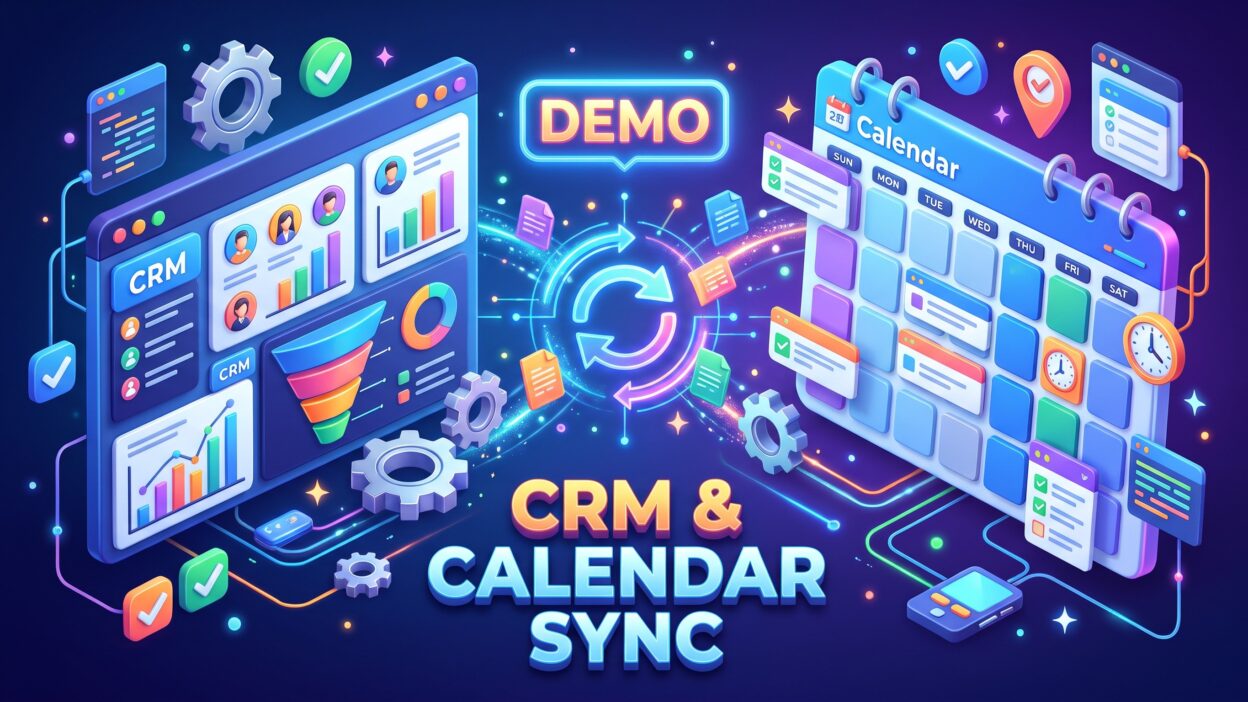
CRM Calendar Sync is a feature that connects your CRM to your calendar app. Your CRM holds contacts, deals, and notes. Your calendar holds meetings, calls, and reminders. The sync joins them. A meeting created in one tool appears in the other within seconds.
Think of a shared notebook. Both tools write in it. Both tools read from it. Nobody retypes anything.
Most platforms support Google Calendar and Microsoft Outlook. Some support Apple Calendar through standard protocols. Setup takes minutes. The payoff lasts for years.
How the Connection Works
The connection runs on an API. An API is a secure bridge between two apps. You sign in to your calendar account. You grant permission. The CRM reads your events and matches each one to a contact by email address. The meeting then sits on that contact’s timeline.
Matching is the heart of the process. A good system checks every guest on the invite. It links the event to the right person, company, and deal. A weak system guesses. You want the first kind.
One-Way vs Two-Way Sync
A one-way sync moves data in a single direction. Events flow from the CRM to the calendar. Changes in the calendar stay in the calendar. This option is simple. It also leaves gaps.
A two-way sync moves data both ways. You move a meeting on your phone. The CRM updates. You log a call in the CRM. Your calendar updates. Most teams want this option. It keeps one version of the truth.
Pick the direction that fits your workflow. Sales teams almost always choose two-way.
Why Your Team Needs CRM Calendar Sync
Every sales leader wants cleaner data. Every rep wants less admin. CRM Calendar Sync delivers both. Here is how the benefits show up in daily work.
Fewer Double Bookings
Double bookings embarrass everyone. A prospect shows up. Your rep does not. The deal suffers.
Sync prevents this problem. Your calendar always reflects your real availability. Booking links read live data. A prospect sees only open slots. Your rep never scrambles to explain a clash.
Cleaner Customer Data
Reps hate data entry. They skip it when deadlines hit. Your CRM then fills with gaps.
Automatic logging fixes this. Each meeting records itself. The date, time, guests, and notes attach to the right record. Managers trust the reports again. Forecasts stop relying on guesswork.
Faster Follow-Ups
Speed wins deals. A follow-up sent within an hour beats one sent next week. Sync triggers tasks the moment a meeting ends. The CRM can remind your rep to send a recap. It can create a next-step task. It can move the deal to a new stage.
Small automations add up. A team of ten saves dozens of hours each month. That time goes back into selling.
Better Team Visibility
Managers see who meets whom. They spot busy weeks and quiet weeks. They coach with real facts. Shared calendars also help support and success teams. Everyone sees the customer story in one place.
This is why CRM Calendar Sync matters for growing teams. Small teams get quick wins. Large teams get control.
What a Demo CRM Calendar Sync Looks Like
A demo shows you the product before you commit. Ask for a live demo of CRM Calendar Sync. Do not settle for slides. Slides hide problems. A live session reveals them.
Setting Up the Demo
Ask the vendor to use a test account. Connect a real calendar. Use a calendar with a few events already booked. Create a new meeting with a sample contact. Watch the event appear in the CRM.
Time the process. Fast tools show the event in under a minute. Slow tools take longer. Note the delay.
What to Test During the Demo
Run a short checklist in your head. Create an event in the calendar. Check the CRM. Edit the event time. Check the CRM again. Delete the event. Check one more time. Each step should update both sides.
Test recurring meetings. Many tools handle them poorly. A weekly call should show every instance. Changing one instance should not break the series.
Test guests who are not in the CRM. A smart system offers to create a new contact. A weak system ignores the guest. Pay attention to this detail.
Test time zones. Book a meeting with someone in another country. Confirm that both calendars show the right hour. Time zone errors ruin trust fast.
Test privacy. Mark a personal event as private. Confirm the CRM hides the details. Your dentist appointment should not appear on a shared timeline.
Questions to Ask the Vendor
Ask how often the sync runs. Ask how the tool handles conflicts. Ask what happens when a connection breaks. Ask who owns the data. Good vendors answer clearly. Vague answers signal trouble.
Key Features to Look For in CRM Calendar Sync
Not every tool offers the same depth. Use this section as your buying guide. Each feature below changes how your team works.
Look for real-time updates first. Real-time sync means changes appear within seconds. Batch sync means changes appear every few hours. Real-time wins for busy sales teams.
Look for contact matching next. The tool should link events to contacts, companies, and deals. Smart matching saves hours of cleanup. Some tools let you set rules. You can match by domain, by email, or by custom field.
Meeting scheduling links add huge value. A rep shares a link. The prospect picks a time. The event lands on both calendars and in the CRM. No email ping-pong needed.
Automation rules matter too. You may want a task after every demo. You may want a deal stage change after a signed contract meeting. Good tools let you build these rules without code.
Team calendars help managers. A shared view shows who has capacity. Round-robin booking spreads leads fairly across reps. Territory rules route meetings by region.
Reporting closes the loop. You should see meetings held, meetings missed, and meetings per deal. These numbers feed coaching and forecasting.
Mobile support deserves a test. Reps live on their phones. Edits made on mobile must reach the CRM quickly. Open the app during the demo. Try one change.
Finally, check the sync controls. You should choose which calendars sync. You should choose which events stay private. You should choose which fields update. Fine control prevents messy surprises.
A strong CRM integration combines all of these features. A weak one offers two or three. Compare vendors against this list.
Step-by-Step Guide to Set Up CRM Calendar Sync
Setup is easier than most people expect. Follow these stages in order. Block thirty minutes.
Prepare Your Accounts
Confirm you have admin rights in your CRM. Confirm you can sign in to your calendar account. Gather the email addresses your team uses. Clean up old events if your calendar is a mess. A tidy calendar syncs better.
Connect the Calendar
Open the integration settings in your CRM. Choose your calendar provider. Google Calendar sync and Outlook sync sit side by side in most menus. Click connect. A sign-in window opens. Grant the requested permissions.
Read each permission carefully. The tool needs to read and write events. It does not need your email inbox for basic sync. Grant only what you need.
Choose Your Sync Settings
Pick the sync direction. Choose two-way for most teams. Pick which calendars to include. Your primary work calendar is the usual choice. Skip personal calendars unless you want them visible.
Decide which events sync. You can sync all events or only events with CRM contacts. The second option keeps your timeline focused. Teams with many internal meetings prefer it.
Set Privacy Rules
Choose how private events appear. Most tools offer a “busy” label with no details. Use it. Confirm the rule works by creating a private test event.
Run a Test
Create a meeting with a known contact. Check the CRM. Edit the time. Check again. Delete the meeting. Confirm the cleanup. Test on mobile too.
Train Your Team
Share a short guide. Show reps where meetings appear. Explain how to link an event to a deal. Answer questions in a quick call. Adoption depends on clear teaching. A great tool fails when nobody understands it.
Common CRM Calendar Sync Problems and How to Fix Them
Even good tools hit snags. Most CRM Calendar Sync issues have simple causes. Use these fixes before you contact support.
Missing events top the list. Check the sync filters first. An event may fall outside your date range. Check the calendar selection next. The event may sit on a calendar you did not connect. Check the guest list last. The tool may skip events with no CRM contact.
Duplicate events frustrate many users. Duplicates appear when two sync connections run at once. Check whether you linked the calendar twice. Remove the extra connection. Delete the duplicates once. They should not return.
Wrong time zones cause confusion. Open your profile in the CRM. Confirm the time zone matches your calendar. Confirm your device uses the same setting. Fix any mismatch.
Broken connections happen after password changes. Calendar providers revoke access when credentials change. Reconnect the account. The history usually restores.
Delays can come from heavy loads. Large calendars with thousands of events slow the first sync. Wait an hour after the initial connection. Speed improves after that.
Contacts not matching point to email differences. A prospect may use a personal address on the invite. Your CRM holds a work address. Add the second address to the contact record. Matching improves right away.
Permission errors appear when your admin blocks third-party apps. Ask your IT team to approve the integration. Share the vendor’s security documents. This step often takes a day or two.
Keep a short troubleshooting note for your team. Reps fix most issues themselves with a clear guide.
Best Practices for CRM Calendar Sync
Good habits keep your data healthy. Adopt these practices from day one.
Name meetings clearly. A title like “Demo with Acme Corp” helps everyone. A title like “Call” helps nobody. Clear names make reports readable.
Invite contacts by their CRM email. Matching depends on this detail. Teach reps to double-check addresses before sending an invite.
Use one calendar per person for work. Multiple calendars create confusion. One source keeps sync simple.
Review your sync rules every quarter. Teams change. Processes change. Rules that worked last year may feel clunky today. A quick audit takes fifteen minutes.
Log outcomes after each meeting. Sync records the meeting. Your rep still needs to record what happened. Add notes, next steps, and deal updates. Automation handles the schedule. Humans handle the story.
Keep personal events private. Trust matters. Reps adopt tools faster when they know their private life stays private.
Set up meeting reminders. Automated reminders cut no-shows. Send one a day before and one an hour before. Include a clear link to join or a clear address.
Track your no-show rate. A rising rate signals a problem with reminders or lead quality. Fix the cause early.
Use shared calendars for team events. Webinars, trade shows, and training sessions belong on a shared view. Everyone plans around them.
Finally, document your process. Write a one-page guide. Share it with new hires. Strong onboarding makes your calendar integration pay off from the first week.
Security and Privacy in CRM Calendar Sync
Your calendar holds sensitive information. It shows who you meet and when. Treat this data with care.
Choose vendors that use encrypted connections. Look for modern standards such as OAuth. OAuth lets you grant access without sharing your password. You can revoke access at any time.
Ask where the vendor stores your data. Some regions have strict privacy laws. Europe uses GDPR. California uses CCPA. A good vendor explains how it complies.
Review the permissions list during setup. Grant the smallest set that works. Revisit the list each year.
Control who sees what. Role-based access limits visibility. A junior rep may see only their own meetings. A manager may see the whole team. An admin may see everything. Set these rules early.
Secure CRM Calendar Sync also means good internal habits. Use strong passwords. Turn on multi-factor authentication. Remove access when an employee leaves. These steps protect your customers and your company.
Ask for audit logs. Logs show who accessed what and when. They help during security reviews. Ask for them during the demo.
Popular Integrations: Google Calendar and Outlook
Two providers dominate the market. Almost every CRM supports both.
Google Calendar Sync
Google Calendar sync suits teams that use Google Workspace. The setup uses a single sign-in. Events flow quickly. Google Meet links attach to invites automatically. Many CRMs add the link to the contact timeline.
Google handles recurring events well. It also handles shared calendars with ease. Teams that work in Gmail enjoy a smooth experience.
Outlook Sync
Outlook sync suits teams in the Microsoft ecosystem. Companies with Microsoft 365 often choose it. Microsoft Teams links attach to invites. Admins control permissions through the Microsoft admin center.
Outlook setups sometimes need IT approval. Plan for that step. Once approved, the connection runs smoothly.
Other Options
Some tools support Apple Calendar through CalDAV. Others connect through automation platforms. These routes work. They add one more layer to manage.
Choose the provider your team already uses. Do not switch calendars just for a CRM integration. Your CRM should adapt to your workflow, not the other way around.
How to Measure CRM Calendar Sync Results
You invested time and money. Prove the return. Track a few simple numbers.
Start with admin time. Ask reps how long they spent logging meetings before the sync. Ask again after one month. Most teams report big savings.
Track meetings booked per rep. Scheduling links often raise this number. Prospects book faster when the process is easy.
Track no-show rates. Reminders and clear invites lower them. Compare the three months before and after setup.
Track data quality. Count contacts with a recent activity logged. Count deals with no activity in thirty days. Both numbers should improve.
Track deal velocity. Faster follow-ups shorten the sales cycle. Compare the average days from first meeting to close.
Track adoption. Count how many reps use the booking link. Count how many link events to deals. Low adoption means you need more training.
Share results with your team. Celebrate wins. Fix weak spots. Numbers turn a software purchase into a story leadership understands.
Frequently Asked Questions
What does CRM Calendar Sync do?
It links your CRM to your calendar. Meetings in one tool appear in the other. Updates travel both ways. Your timeline stays accurate without manual entry.
Is CRM Calendar Sync safe?
Yes, when you choose a reputable vendor. Look for encryption, OAuth sign-in, and clear privacy policies. Review permissions. Turn on multi-factor authentication. Your CRM Calendar Sync setup stays safe when you follow these habits.
Can I sync more than one calendar?
Most tools allow several calendars. You choose which ones sync. Many teams connect only the main work calendar.
Does the sync work on mobile?
Yes. Changes made on your phone reach the CRM through your calendar app. Test this during your demo. Speed varies by vendor.
What happens if I delete a synced event?
That depends on your settings. In a two-way sync, the deletion usually passes to the other tool. Some systems keep a record of the deleted meeting in the CRM. Ask the vendor how it works.
How long does setup take?
Basic setup takes under thirty minutes. Training and rule building take longer. Plan a week for a smooth team rollout.
Will private events show up in the CRM?
Not if you set the privacy rules. Mark events as private in your calendar. The CRM shows them as busy time with no details.
Do I need technical skills?
No. Most platforms use guided menus. You click, sign in, and choose settings. Complex automations may need an admin, but basic sync does not.
Read More:-B2B Lead Generation Statistics for 2026: 35+ Data Points
Conclusion

Meetings drive sales. Your CRM should know about every one. CRM Calendar Sync makes that happen without extra work.
You learned what the feature does. You saw why teams love it. You walked through a demo checklist. You learned the key features, the setup steps, the common fixes, and the best practices. You also covered security, popular integrations, and ways to measure success.