
Introduction
TL;DR Phone leads slip through the cracks when call data lives outside your CRM. CallRail Salesforce integration fixes that gap by pushing every call straight into your existing pipeline. This guide covers what the integration does, what data actually syncs, and how to set it up correctly. You also get real pricing, common setup problems, and the top alternatives if the native connector feels limited. Read through before you touch your Salesforce permissions or your CallRail billing plan.
Table of Contents
What Is CallRail Salesforce Integration?
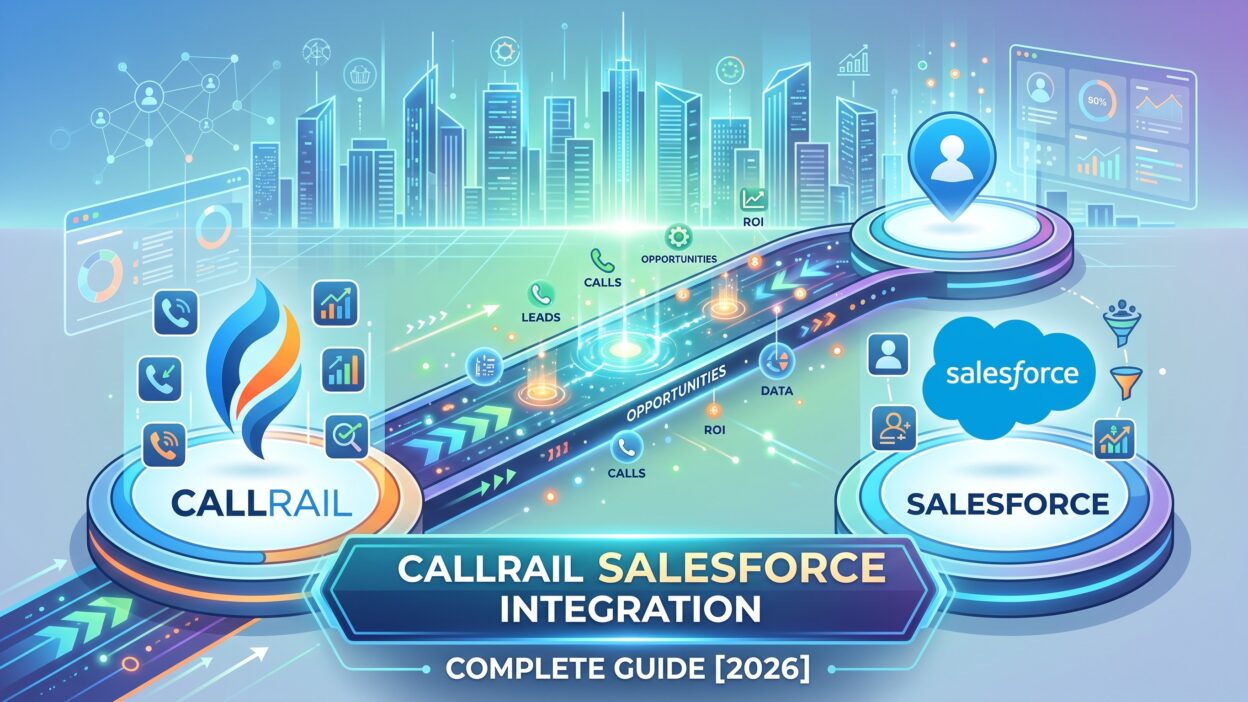
CallRail Salesforce integration connects your call tracking data directly to Salesforce records. When a call comes in on a tracked number, CallRail captures the caller’s phone number and the full marketing attribution behind that call. The integration pushes this information straight into Salesforce, either creating a new lead or logging activity on a record that already exists.
Attribution data matters here more than the raw call itself. CallRail knows which campaign, keyword, or landing page drove that specific call before the phone even rings. Once that data lands inside Salesforce, your sales and marketing teams finally see which channels actually generate real pipeline instead of just website clicks.
Custom field mapping controls exactly which CallRail fields populate which Salesforce fields. This flexibility lets each business shape the integration around its own CRM structure rather than accepting a rigid, one-size-fits-all setup. Understanding this mapping layer matters before you configure anything inside your account.
Why Your Sales Team Needs CallRail Salesforce Integration
Manual call logging wastes real selling time every day. A rep who jots down caller details by hand after every phone lead risks typos, missing fields, and forgotten follow-ups. CallRail Salesforce integration removes that manual step completely, since call data lands inside Salesforce automatically the moment a call ends.
Marketing teams benefit just as much as sales. Attribution data shows exactly which campaign, keyword, or ad drove a specific phone call. Without this integration, marketers guess which channels generate real revenue based on form fills alone, ignoring the phone calls that often convert at a much higher rate for service-based businesses.
Picture a home services company running Google Ads across five campaigns. A call comes in from a tracked number tied to one specific ad group. CallRail Salesforce integration logs that call, attaches the full attribution chain, and creates a lead automatically inside Salesforce. The sales rep sees exactly which campaign generated that lead before picking up the phone for a follow-up call.
This kind of visibility helps budget decisions too. Marketing leaders finally see which campaigns produce calls that turn into closed deals, not just calls that happen to come in. CallRail Salesforce integration turns scattered call data into a real, trustworthy part of your pipeline reporting.
What Data Syncs Through CallRail Salesforce Integration
Call records carry the bulk of the synced data. Marketing source, campaign name, keyword, landing page URL, and referring URL all travel with every logged call. Caller phone number, call duration, call type, and the specific tracking number dialed round out the core attribution package.
Tags and notes sync too, letting reps see context a colleague already added to a previous call from the same number. Recording links attach directly to the Salesforce activity, so a manager reviews the actual conversation without leaving the CRM.
Teams running CallRail’s Conversation Intelligence unlock a deeper data layer. Call summaries and automatic lead qualification tags sync alongside the standard attribution fields. This addition matters for sales teams that want context on call quality, not just the fact that a call happened.
CallRail builds leads in stages rather than all at once. A lead gets created at the start of a call using the limited caller ID information available at that moment. Once the call ends, CallRail updates that same record with duration, recording links, and tags. This staged approach keeps Salesforce populated in near-real time rather than waiting for a call to finish before any record appears.
CallRail Salesforce Integration Requirements
Your Salesforce org needs REST API access before this integration works at all. Lightning Enterprise or Unlimited editions typically include this access by default. Lower editions may need an add-on before the connection succeeds.
Permission settings matter just as much as your Salesforce edition. The user authorizing the connection needs “View All Profiles” and “Modify All Data” enabled inside their Salesforce profile. Skipping this step causes the integration to fail during the initial authorization step, a problem many teams hit on their first setup attempt.
Lead creation and editing rights, along with activity management permissions, round out the required access. Most sales teams already have these permissions configured for regular users, so this requirement rarely blocks a standard business setup.
On the CallRail side, you need an active account on a plan that supports premium integrations. Confirm your specific plan tier includes Salesforce before you start configuring anything, since not every CallRail tier ships with this connector included at no extra charge.
CallRail Salesforce Integration: Step-by-Step Setup Guide
Step 1: Confirm Your Salesforce Permissions
Check that the user authorizing this integration holds “View All Profiles” and “Modify All Data” permissions inside Salesforce. Missing either permission blocks the connection during authorization, so confirm this first rather than troubleshooting a failed setup later.
Step 2: Sign Up or Log In to CallRail
Create a CallRail account if you do not already run one, or log into your existing account. CallRail offers a free trial period for teams testing the platform before committing to a paid plan.
Step 3: Connect Salesforce From the Integrations Tab
Open the Integrations tab inside your CallRail dashboard and search for Salesforce among the available connectors. Click to begin the connection process, which prompts a secure login through Salesforce’s own authentication screen. Authorize the connection once Salesforce confirms your credentials and permissions.
Step 4: Configure Lead and Activity Settings
Decide how CallRail should handle incoming calls once the connection goes live. Choose whether the integration creates a new lead when no matching record exists, or whether it should only log activity against contacts and accounts already inside Salesforce. Configure whether outbound calls follow the same rules as inbound calls, since CallRail lets you set these independently.
Step 5: Map Custom Fields
Field mapping decides how CallRail data actually lands inside Salesforce. Assign CallRail’s “source type” field to your Salesforce “lead source” field as a starting example. Add or remove rows from the default mapping table based on your specific business needs. CallRail never overwrites existing lead fields, so this mapping only affects new data coming in, not records already sitting inside your CRM.
Step 6: Test and Monitor the Sync
Place a test call through one of your tracked numbers and confirm it creates or updates the correct Salesforce record. Check that attribution fields, tags, and recording links all appear as expected. Monitor the first week of live calls closely, since mapping errors often surface once real call volume starts flowing through the connection rather than during a single test call.
Key Features of CallRail Salesforce Integration
Automatic Lead Creation
CallRail creates a new Salesforce lead automatically when a call comes in from a number with no existing match. This feature runs based on rules you configure during setup, giving you control over exactly when a new record gets created versus when a call simply logs against an existing contact.
Call Attribution Data
Every call carries its full marketing attribution chain into Salesforce. Source, campaign, keyword, and landing page all travel with the record. This feature turns CallRail Salesforce integration into a genuine attribution tool, not just a call logging connector.
Conversation Intelligence Sync
Teams running CallRail’s higher tiers get call summaries and lead qualification tags synced directly into Salesforce. A rep opens a lead record and immediately sees a summary of the call rather than replaying a full recording. This feature adds real value for sales teams juggling high call volumes across multiple reps and territories.
Together, these three features turn CallRail Salesforce integration into more than a simple data pipe. Attribution, automatic lead handling, and call intelligence combine to give both sales and marketing teams a clearer, shared view of exactly which calls matter most to the business.
Common Problems With CallRail Salesforce Integration
Permission errors rank among the most common setup issues. A user missing “View All Profiles” or “Modify All Data” access hits a wall during authorization, often without a clear error message explaining why the connection failed.
Data mapping conflicts create a second frequent headache. Mismatched fields between CallRail and Salesforce cause incomplete syncs or activities logged in the wrong place entirely. Careful mapping during initial setup avoids most of this pain later.
Duplicate records show up when the integration cannot match an incoming call to an existing contact or lead. This happens most often when phone number formatting differs slightly between systems, so standardizing number formats across both platforms reduces this risk significantly.
API limits create the final common problem, especially for high-volume accounts. Salesforce caps API calls at a fixed threshold, and heavy call volume through CallRail can hit that ceiling faster than expected. Once you exceed the limit, data syncing delays or real-time updates pause until the limit resets. Monitoring your API usage regularly keeps CallRail Salesforce integration running smoothly, even as your call volume grows month over month.
CallRail Salesforce Integration vs Zapier and Make
Native Integration
The native CallRail Salesforce integration offers the deepest, most direct connection available. Field mapping runs natively, and staged lead creation happens automatically as a call progresses. The tradeoff comes down to cost, since this connector adds roughly $65 a month on top of your existing CallRail plan.
Zapier
Zapier connects CallRail to Salesforce through a trigger-and-action workflow, available to any team with a Zapier account regardless of CallRail plan. No engineering resources are required to set this up. Filters and conditional logic let you sync only calls over a certain duration or route different call types to different Salesforce record types.
Make
Make offers a similar connection through a visual scenario builder, with triggers for inbound calls, completed calls, and SMS messages. Per-operation pricing runs lower than Zapier at higher volumes, and Make’s conditional routing gives more control over complex, multi-step workflows.
Each path fits a different budget and technical comfort level. Teams wanting the deepest native experience should budget for the premium CallRail Salesforce integration add-on. Teams testing the waters or running tighter budgets often start with Zapier or Make, then move to the native connector once the workflow proves its value across a full sales quarter.
Cost of CallRail Salesforce Integration
CallRail’s base plans run from roughly $50 to $215 a month depending on tier, covering call tracking, conversation intelligence, and analytics features at different depths. The Salesforce integration itself adds approximately $65 a month on top of whichever base plan you choose, a cost that occasionally exceeds the base plan itself for teams on lower tiers.
Usage-based charges add another layer worth planning around. Extra tracking numbers cost around $3 a month each once you exceed your plan’s included allowance, typically five numbers on most tiers. Additional minutes bill separately too, so a business running multiple campaigns or number pools should budget carefully before assuming the advertised plan price covers everything.
Weigh this cost against what manual call logging currently costs your team in lost selling time. A sales rep who stops manually entering caller details after every phone lead gains back real hours each week. For businesses generating meaningful revenue from phone leads, CallRail Salesforce integration usually pays for itself through better attribution data and fewer missed follow-ups alone, even after accounting for the added monthly fee.
Best Practices for CallRail Salesforce Integration
Confirm permissions before you attempt the connection, not after a failed authorization attempt. This single step prevents the most common setup frustration teams report.
Standardize phone number formatting across both platforms early. Consistent formatting reduces duplicate records significantly, since the integration matches incoming calls to existing contacts based on that phone number field.
Review your field mapping every few months as your Salesforce structure evolves. A mapping table built during initial setup often needs adjustment once new custom fields or lead sources enter your workflow.
Monitor Salesforce API usage regularly, especially as call volume grows. Catching a looming API limit before it causes sync delays keeps your CallRail Salesforce integration running reliably during your busiest sales periods. Set a recurring reminder to check this usage monthly rather than discovering the issue only after a sync failure disrupts your pipeline reporting.
FAQs
How much does CallRail Salesforce integration cost?
The native connector adds roughly $65 a month on top of your existing CallRail plan. Base CallRail plans range from about $50 to $215 monthly depending on the tier and features you need.
What Salesforce edition do I need for this integration?
Lightning Enterprise or Unlimited editions typically include the REST API access this integration requires. Lower editions may need an additional API add-on before the connection works correctly.
Does CallRail Salesforce integration create duplicate leads?
It can, usually when phone number formatting differs between the two platforms or when the matching logic cannot find an existing record. Standardizing number formats and reviewing your lead creation rules reduces this risk considerably.
Can I use Zapier instead of the native CallRail Salesforce integration?
Yes. Zapier connects the two platforms through a trigger-and-action workflow, available regardless of which CallRail plan you run. This option works well for teams wanting more control over conditional logic without paying for the premium native add-on.
Does the integration sync call recordings into Salesforce?
Yes. Recording links attach directly to the logged activity inside Salesforce, letting a manager review the actual conversation without leaving the CRM. Teams running Conversation Intelligence also get call summaries synced alongside the recording link.
What happens if I hit Salesforce API limits with high call volume?
Data syncing slows down or pauses temporarily until your API limit resets. Monitoring usage regularly and upgrading your Salesforce edition if needed prevents this disruption from affecting real-time lead updates during busy periods.
Read More:-Generative AI Data Infrastructure: A GTM Leader’s Guide to Data-Driven AI
Conclusion

CallRail Salesforce integration turns scattered phone call data into clean, attributed pipeline information your whole revenue team can trust. Reps stop logging calls by hand, and marketers finally see which campaigns drive real phone leads instead of guessing based on form fills alone. Setup takes real attention to permissions and field mapping, but the payoff shows up fast once live calls start flowing correctly.
Budget for the added monthly cost honestly before you commit. The native connector delivers the deepest experience, while Zapier and Make offer lighter, cheaper paths worth testing first if your budget stays tight. Whichever route you choose, standardize your phone number formatting and review your field mapping regularly to keep the connection clean.
Start with a small test group before rolling this out to your full sales team. A well-configured CallRail Salesforce integration saves real time every week and gives your business a much clearer picture of which marketing efforts actually turn phone calls into closed revenue throughout 2026.