
Introduction
TL;DR Sales reps burn close to 40 minutes a day copying prospect data between LinkedIn and their CRM by hand. That waste disappears once you set up the LinkedIn Sales Navigator Salesforce integration correctly. This guide covers what the integration does, which plans support it, and how to set it up step by step. You also get the real cost, common setup problems, and the best alternatives if the native option feels too expensive. Read through before you touch your Salesforce admin settings.
Table of Contents
What Is LinkedIn Sales Navigator Salesforce Integration?
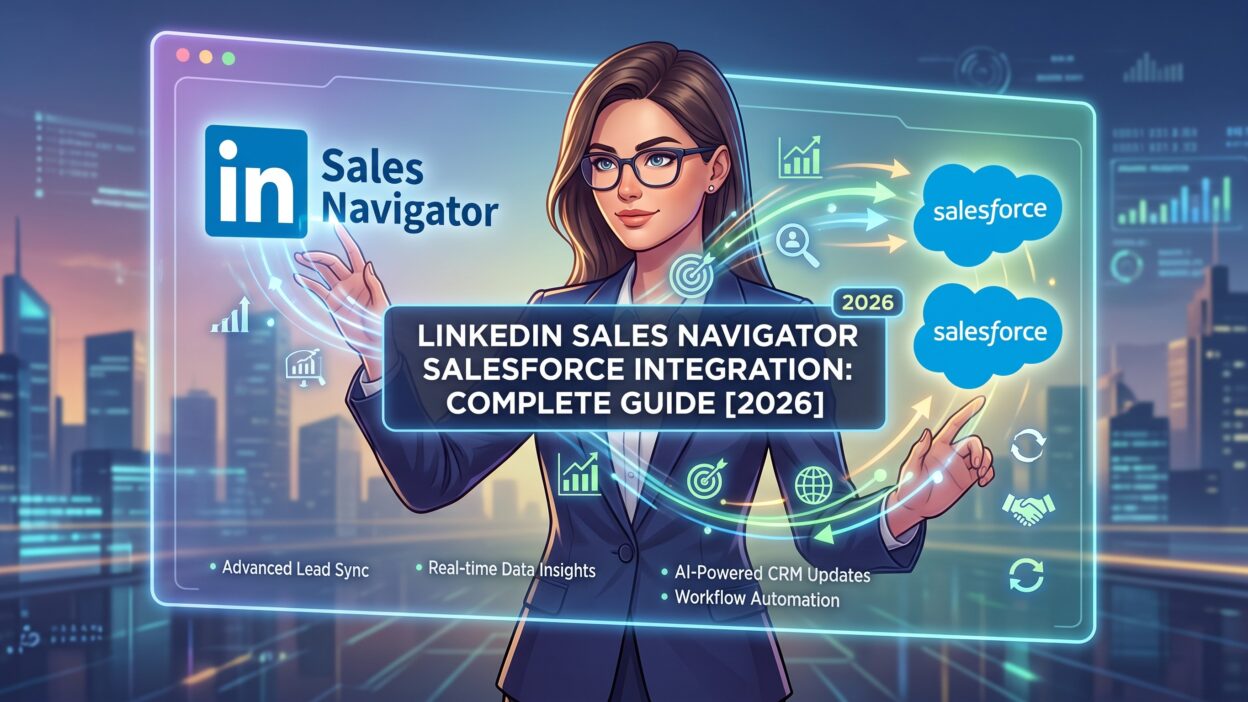
The LinkedIn Sales Navigator Salesforce integration connects your prospecting data directly to your CRM records. Contact details, account signals, and logged activity flow between both platforms without a manual export. A rep sends an InMail inside Sales Navigator, and that activity appears on the matching Salesforce contact automatically.
This connection runs in near-real time on supported plans. Lead and contact creation happens with a single click inside Sales Navigator, and the full profile data lands in Salesforce seconds later. Reps stop switching tabs just to log a conversation that already happened on LinkedIn.
Not every Sales Navigator plan includes this feature. The Core plan skips Salesforce integration completely. Higher tiers unlock the sync, though the depth of that sync changes a lot depending on which plan your team buys. Understanding this tier gap matters before you promise your sales team a fully connected workflow that your current license does not actually support.
Why Your Sales Team Needs LinkedIn Sales Navigator Salesforce Integration
Suggested word count: 290 words
Manual data entry costs your team real selling time every single day. A rep who copies ten new LinkedIn contacts into Salesforce by hand loses close to forty minutes daily, based on recent productivity research. Multiply that across a ten-person team, and you lose several hours of selling time each week.
The LinkedIn Sales Navigator Salesforce integration removes that manual step entirely. Reps focus on conversations instead of data entry. Managers get cleaner pipeline reports, since LinkedIn activity flows into Salesforce without a rep remembering to log it later.
Picture a team returning from an industry conference. Reps connect with fifty new people on LinkedIn that same week. Sales Navigator flags which of those new contacts already match an open Salesforce account. Reps prioritize warm leads immediately instead of guessing which contact deserves a follow-up first. The engagement attributes back to the right opportunity within hours, not during a quarterly cleanup.
This kind of speed matters most for SDR-heavy teams working high volumes of outbound leads. It also matters for account executives managing complex, multi-stakeholder deals where timing decides who wins the deal. A well-built LinkedIn Sales Navigator Salesforce integration turns scattered LinkedIn activity into pipeline data your whole revenue team can trust.
LinkedIn Sales Navigator Plans That Support Salesforce Integration
Core Plan
The Core plan costs roughly $99 to $119.99 per month per seat. It includes unlimited lead searches and advanced filters. It includes zero Salesforce integration. Teams on Core copy every contact into Salesforce by hand, no matter how good their prospecting workflow looks inside LinkedIn itself.
Advanced Plan
Advanced runs around $149 to $159.99 per month per seat. This tier unlocks basic CRM Sync, including lead and contact creation directly inside Salesforce. TeamLink also unlocks here, letting reps see second and third-degree connections across their entire company. Most teams running a real LinkedIn Sales Navigator Salesforce integration start at this tier, since it covers the core sync most SDR teams actually need.
Advanced Plus Plan
Advanced Plus carries custom, enterprise-level pricing, typically starting around $1,600 per seat per year and climbing past $11,000 for larger deployments. This tier adds full bi-directional sync, Activity Writeback, and Opportunity influence tracking. Only Advanced Plus lets Sales Navigator activity write straight back into a Salesforce Opportunity record automatically.
Choosing the right tier depends on how deep your reporting needs to go. A small team logging basic contact activity does fine on Advanced. A large enterprise team tracking Sales Navigator’s direct impact on closed revenue needs Advanced Plus to get real attribution data out of the LinkedIn Sales Navigator Salesforce integration.
What Data Syncs Between LinkedIn Sales Navigator and Salesforce
Contact records sync first and matter most. A new lead created inside Sales Navigator carries over job title, company, and location automatically. Account data syncs next, matching Sales Navigator company pages to existing Salesforce accounts already in your pipeline.
Activity data flows too, though only what a rep explicitly logs. Sent InMails, saved notes, and manual activity entries all appear on the Salesforce record. Passive signals do not sync at all. Profile views, anonymous engagement, and casual browsing never reach your CRM, no matter which plan you run.
Opportunity influence data only flows on Advanced Plus. This layer connects specific Sales Navigator activity to a won or lost deal, giving revenue leaders real attribution instead of a guess. Without Advanced Plus, your team sees activity logs but never sees the direct link between a LinkedIn touch and a closed deal.
Understanding this sync scope matters before setup. Teams often assume every LinkedIn action reaches Salesforce automatically. The real LinkedIn Sales Navigator Salesforce integration only moves what reps actively log, so training your team to log activity consistently matters as much as the technical setup itself.
LinkedIn Sales Navigator Salesforce Integration: Step-by-Step Setup Guide
Confirm Your Plan and Admin Access
Check your current Sales Navigator tier before you start anything. Core plans cannot connect to Salesforce at all, so confirm your team runs Advanced or Advanced Plus first. You also need Salesforce admin rights to complete the connection, since regular user permissions will not reach the settings this setup requires.
Generate Salesforce API Credentials
Open Salesforce Setup and navigate to Apps, then App Manager. Create a new Connected App inside that panel. Enable the OAuth scopes for API access and offline access, since the integration needs a refresh token to keep syncing without repeated logins. Salesforce generates a Consumer Key and a Consumer Secret once you save this Connected App. Copy both values somewhere safe, since the next step needs them.
Connect Sales Navigator to Salesforce
Log into Sales Navigator as an admin and open Admin Settings. Find the CRM Settings section and select Salesforce as your target platform. Paste in the Consumer Key and Consumer Secret from the previous step. Authorize the connection through the Salesforce login prompt that appears next. This full process usually takes between twenty and thirty minutes for an admin who already holds both sets of credentials ready.
Step 4: Map Fields and Set Dedup Rules
Field mapping decides how Sales Navigator data lands inside your existing Salesforce fields. Skipping this step creates duplicate contact records fast, since the two systems will not recognize a contact that already exists under a slightly different name or email format. Set clear deduplication rules before your team starts creating leads at scale. A rushed setup here often costs a full week of manual cleanup later.
Test and Roll Out to Your Team
Run a small test with two or three reps before opening access company-wide. Create a lead from Sales Navigator and confirm it lands correctly inside Salesforce with the right fields populated. Log a test InMail and check that the activity appears on the matching record. Once the test passes cleanly, roll the LinkedIn Sales Navigator Salesforce integration out to your full team and monitor the first week closely for any mapping errors.
Key Features of LinkedIn Sales Navigator Salesforce Integration
TeamLink and Warm Introductions
TeamLink shows every connection your entire company holds to a target prospect. A rep pursuing a hard-to-reach decision-maker checks TeamLink first and often finds a colleague already connected to that exact person. This feature alone turns cold outreach into a warm introduction, and it syncs cleanly with Salesforce account data once your team sets up the connection correctly.
Activity Writeback
Activity Writeback pushes logged Sales Navigator actions directly into the matching Salesforce record. InMails, notes, and saved leads all appear without a rep touching Salesforce directly. This feature only runs on Advanced Plus, so confirm your plan before you promise this capability to your revenue operations team.
Opportunity Influence Tracking
Opportunity influence tracking connects specific LinkedIn activity to a Salesforce Opportunity outcome. Revenue leaders finally see whether Sales Navigator touches actually move a deal forward or simply add noise to an activity log. This feature also sits behind the Advanced Plus tier, and it stands out as the strongest reporting layer inside the full LinkedIn Sales Navigator Salesforce integration stack.
Together, these three features turn a basic contact sync into a real sales intelligence layer. Teams that use all three consistently report faster deal cycles and clearer visibility into which prospecting activity actually drives revenue.
Common Problems With LinkedIn Sales Navigator Salesforce Integration
Duplicate records rank as the most common complaint. Skipping proper field mapping during setup creates two versions of the same contact inside Salesforce. Cleaning this up after the fact takes far longer than setting dedup rules correctly on day one.
Missing engagement data confuses many new admins. Sales Navigator never syncs profile views or passive browsing back to Salesforce, no matter which plan you run. Reps who expect every LinkedIn interaction to appear automatically often assume the integration is broken when it actually works exactly as designed.
Tier confusion causes budget surprises too. Teams frequently buy the Advanced plan expecting full Activity Writeback, only to discover that feature sits locked behind Advanced Plus pricing. Confirming exact plan features before signing a contract avoids this problem entirely.
Slow adoption creates a final common issue. A rep who never logs InMails or notes inside Sales Navigator leaves Salesforce with a thin, incomplete activity history. The LinkedIn Sales Navigator Salesforce integration only works as well as your team’s daily logging habits, so ongoing training matters just as much as the initial technical setup.
LinkedIn Sales Navigator Salesforce Integration vs Alternatives
Native Integration
The native LinkedIn Sales Navigator Salesforce integration gives you the deepest sync available. Bi-directional data flow, Activity Writeback, and Opportunity influence tracking all live here. The catch is cost, since full functionality requires the Advanced Plus tier at enterprise pricing.
Zapier Middleware
Zapier connects Sales Navigator events to Salesforce actions at a fraction of the price. This route runs one-way and depends on specific triggers rather than a full, continuous sync. Smaller teams on tighter budgets often start here before committing to a pricier native contract.
Third-Party Connectors
Tools like Surfe sit between these two options. They offer scheduled, bi-directional syncing without requiring a full LinkedIn enterprise contract. This path suits teams that want more than Zapier delivers but cannot yet justify Advanced Plus pricing for a full LinkedIn Sales Navigator Salesforce integration.
Each path fits a different budget and sales motion. Enterprise teams with heavy attribution needs should invest in the native Advanced Plus setup. Growing teams testing the waters often start with Zapier or a third-party connector, then upgrade once the workflow proves its value across a full sales quarter.
Cost of LinkedIn Sales Navigator Salesforce Integration
Sales Navigator Advanced runs about $149 to $159.99 per seat monthly, covering basic Salesforce sync. Salesforce licenses themselves range from $75 to $300 per user monthly, depending on your chosen edition. A rep running both tools on mid-tier plans costs your business close to $174 a month before you add any enterprise features.
Advanced Plus changes this math significantly. Enterprise pricing typically starts around $1,600 per seat annually and climbs well past $11,000 for larger, more complex deployments. LinkedIn does not publish these numbers publicly, so every enterprise deal runs through a direct sales conversation.
Weigh this cost against the time your team currently loses to manual data entry. Forty minutes a day per rep adds up fast across a full sales quarter. For a ten-person SDR team, that lost time alone often justifies the jump to Advanced or Advanced Plus, since the LinkedIn Sales Navigator Salesforce integration pays for itself once your reps stop copying data by hand every single day.
Best Practices for LinkedIn Sales Navigator Salesforce Integration
Set dedup rules before your first sync, not after duplicate records pile up. A clean field map saves your admin team hours of cleanup work down the road.
Train reps on activity logging from day one. The integration only moves data a rep actually records inside Sales Navigator, so consistent logging habits decide how useful your Salesforce reports become.
Review your plan tier every year as your team grows. A workflow that worked fine on Advanced during your first year might need Advanced Plus once leadership starts asking for real revenue attribution.
Monitor the first month closely after rollout. Small mapping errors show up fast once a full team starts creating leads and logging activity at scale. Catching these issues early keeps your LinkedIn Sales Navigator Salesforce integration running clean well into your next sales quarter.
FAQs
Does LinkedIn Sales Navigator Core include Salesforce integration?
No. The Core plan includes zero CRM integration of any kind. You need at least the Advanced plan to connect Sales Navigator to Salesforce in any working capacity.
How long does LinkedIn Sales Navigator Salesforce integration setup take?
Most admins complete the full setup in twenty to thirty minutes, assuming Salesforce admin access and API credentials are ready beforehand. Field mapping and testing can extend that timeline by a day or two for larger teams.
What is the difference between Advanced and Advanced Plus for this integration?
Advanced covers basic lead and contact sync along with TeamLink access. Advanced Plus adds full bi-directional sync, Activity Writeback, and Opportunity influence tracking, all priced at a custom enterprise rate.
Does the integration sync LinkedIn profile views into Salesforce?
No. Passive signals like profile views and anonymous engagement never sync into Salesforce on any Sales Navigator plan. Only activity a rep explicitly logs, such as InMails and saved notes, reaches the CRM.
Are there cheaper alternatives to the native LinkedIn Sales Navigator Salesforce integration?
Yes. Zapier offers a lower-cost, one-way automation between the two platforms. Third-party connectors like Surfe provide scheduled bi-directional syncing without an enterprise LinkedIn contract, making them a solid middle option for growing teams.
Read More:-Close CRM Features: A Complete Breakdown in 2026
Conclusion

The LinkedIn Sales Navigator Salesforce integration turns scattered prospecting activity into clean, reliable pipeline data. Reps stop copying contacts by hand, and managers stop guessing which LinkedIn touches actually influence a closed deal. The setup takes under an hour for most admins, though field mapping and dedup rules deserve real attention before you roll it out company-wide.
Pick your plan based on actual reporting needs rather than assumption. Advanced covers most SDR teams running standard contact and activity sync. Advanced Plus earns its enterprise price tag only once your team needs full Opportunity attribution flowing back from LinkedIn activity.
Start small, test the connection with a handful of reps, and expand once the workflow proves stable. A well-configured LinkedIn Sales Navigator Salesforce integration saves real selling hours every week and gives your revenue team a far clearer view of what actually drives pipeline growth heading into the rest of 2026.