
Introduction
TL;DR Recruiters lose hours copying names and emails from LinkedIn into spreadsheets. ReachOut fixes this by surfacing verified contact data right on the profile page. This guide shows you how to use ReachOut to connect with candidates from LinkedIn, step by step. You will learn setup, daily workflow and a few habits that keep your outreach clean and effective.
Table of Contents
What Is ReachOut?
ReachOut is a Chrome extension built by ZoomInfo for recruiters and sales teams. It sits on top of LinkedIn and pulls contact details straight from ZoomInfo’s database. A recruiter opens a candidate’s profile and sees an email address or phone number without leaving the page. ZoomInfo now folds this tool into its main Chrome Extension, though most recruiters still call it ReachOut out of habit.
The tool works for anyone with a ZoomInfo TalentOS subscription. It removes the manual guesswork behind finding a candidate’s contact details. This is exactly why so many recruiting teams use ReachOut to connect with candidates from LinkedIn instead of relying on InMail credits alone.
How ReachOut Works with LinkedIn
ReachOut runs as a browser overlay. Once installed, it detects when you land on a LinkedIn profile. A small panel appears on the side of the screen showing matched contact data from ZoomInfo’s records. This panel updates as you scroll through different profiles, so a recruiter never has to switch tabs.
Who Should Use ReachOut
Recruiters running high-volume searches benefit most from ReachOut. Agencies juggling multiple open roles at once also see strong time savings. In-house talent teams use it to build long-term pipelines instead of scrambling for candidates one role at a time. Anyone tired of manually searching for a candidate’s email finds real value here.
Getting Started with ReachOut
Setup takes only a few minutes. A little preparation upfront saves confusion later.
Installing the Chrome Extension
Open the Chrome Web Store and search for the ZoomInfo extension. Click the install button and confirm the permissions request. Pin the extension icon to your toolbar for quick access. This step alone takes less than two minutes on most machines.
Signing In and Setup
Click the pinned icon once installation finishes. Log in using your existing ZoomInfo TalentOS credentials. First-time users may need to grant browser permissions for LinkedIn access. Once signed in, the extension stays active in the background every time you open Chrome.
How to Use ReachOut to Connect with Candidates from LinkedIn
This section walks through the exact daily workflow most recruiters follow.
Step 1: Open LinkedIn and Browse Profiles
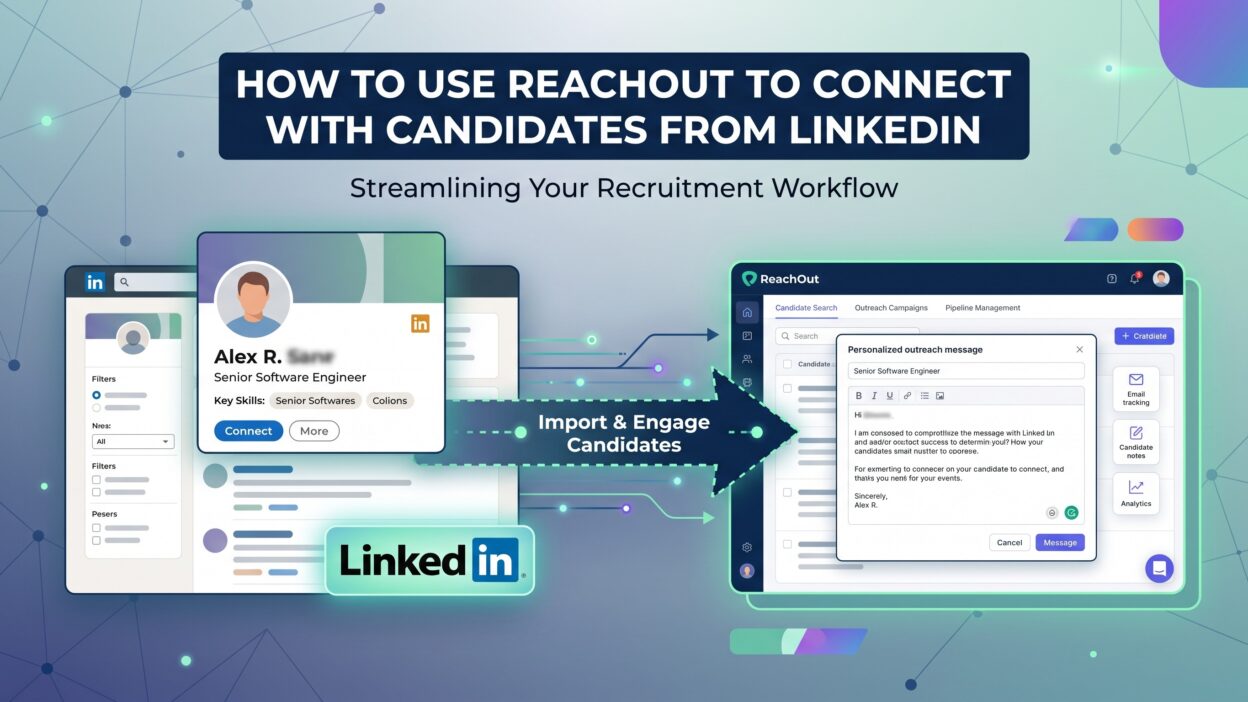
Start by opening LinkedIn as you normally would. Search for candidates using your usual filters like job title, location or skill set. ReachOut activates automatically the moment you open a matching profile. There is no extra click needed to turn it on.
Step 2: Reveal Candidate Contact Details
Click the ReachOut panel on the right side of the profile. The extension shows available contact fields like email and phone number. Click reveal to unlock the full details using a credit from your account. Once revealed, that contact stays accessible without spending another credit.
Step 3: Add Candidates to a Talent Flow
A Talent Flow works like a saved list inside ZoomInfo’s system. Click the add button inside the ReachOut panel to drop a candidate straight into a flow. This keeps your pipeline organized by role instead of scattered across browser tabs and notes.
Step 4: Send a One-Off Email or Sequence
ReachOut lets you send a single email directly from the panel without opening a separate inbox tab. For larger campaigns, add the candidate to an automated email sequence through ZoomInfo Engage. The sequence sends follow-ups automatically and stops once a candidate replies.
Step 5: Export Candidates to Your ATS
Once you finish building a list, export it directly to your applicant tracking system. ReachOut supports integrations with popular platforms, cutting out manual data entry entirely. This step closes the loop between sourcing and your existing hiring workflow.
Key Features That Make ReachOut Useful for Recruiters
A few core features explain why ReachOut to connect with candidates from LinkedIn works so well for busy recruiting teams.
Verified Contact Data
ReachOut pulls from ZoomInfo’s large, regularly updated database. This reduces the number of bounced emails and dead phone numbers compared with guessing an address format. Verified data means less wasted outreach time chasing candidates who never respond.
Tagging and Organization
Recruiters can tag candidates directly inside the extension. Tags help sort candidates by role, seniority or urgency without building a separate spreadsheet. This small feature saves real time across a busy hiring week.
CRM and ATS Integration
ReachOut connects with major CRM and ATS platforms already used by recruiting teams. This means candidate data flows into your existing system instead of sitting stuck inside a browser tab. Fewer manual exports mean fewer chances for lost or duplicate records.
Best Practices When Using ReachOut on LinkedIn
Keep your searches specific before revealing contact details. Broad searches burn credits fast without improving match quality. Narrow filters first, then use ReachOut on the candidates who actually fit your open role.
Personalize every message you send through the panel. A generic template gets ignored quickly, even with a verified email address behind it. Mention something specific from the candidate’s profile before pitching the role.
Review LinkedIn’s platform rules regularly. Using your own login through ReachOut stays within normal browsing behavior, but automated bulk actions on LinkedIn itself can trigger account restrictions. Stick to manual, profile-by-profile review for the safest long-term use.
Benefits of Using ReachOut to Connect with Candidates from LinkedIn
Time savings top the list of benefits. A search that once took several browser tabs and a spreadsheet now happens on a single LinkedIn page. Recruiters report faster time-to-fill numbers once they adopt ReachOut into their daily routine.
Data quality improves too. Verified contact details reduce bounced emails and dead-end phone calls. This means less wasted follow-up time and stronger response rates across every open role. Teams using ReachOut to connect with candidates from LinkedIn consistently report smoother handoffs between sourcing and outreach stages.
Common Mistakes to Avoid
Skipping the tagging step causes confusion later. Untagged candidates blend together inside a growing Talent Flow, making it hard to track who belongs to which role. Take the extra few seconds to tag every candidate as you go.
Sending the same message to every candidate hurts response rates. A verified email address does not fix a weak or generic pitch. Spend a little extra time customizing each message before hitting send.
Ignoring credit usage adds up fast for larger teams. Track how many reveals your team uses each month and adjust search habits if costs climb higher than expected.
ReachOut vs Other LinkedIn Outreach Tools
Many LinkedIn outreach tools focus purely on automation, sending connection requests and messages without much regard for data quality. ReachOut takes a different approach by pairing outreach with a verified contact database behind it. This matters most for teams tired of chasing candidates through unreliable InMail response rates.
Tools built purely for automation carry higher risk of LinkedIn account restrictions. ReachOut avoids this by working alongside your normal browsing rather than automating actions on LinkedIn itself. This makes it a safer long-term choice for recruiting teams that value account stability.
FAQs About Using ReachOut to Connect with Candidates from LinkedIn
What is ReachOut used for on LinkedIn? ReachOut surfaces verified contact details like email and phone numbers directly on LinkedIn profiles. Recruiters use it to skip manual research before reaching out to candidates.
Do I need a ZoomInfo subscription to use ReachOut? Yes, ReachOut requires an active ZoomInfo TalentOS or Sales subscription. The extension itself installs free from the Chrome Web Store.
Is ReachOut safe to use with my LinkedIn account? Yes, when used manually for research and outreach. Avoid pairing it with separate automation tools that send bulk connection requests, since that behavior violates LinkedIn’s terms.
Can ReachOut export candidates directly to my ATS? Yes, ReachOut integrates with several popular applicant tracking systems. This lets you move candidates from LinkedIn into your hiring workflow without manual data entry.
How many contacts can I reveal with ReachOut each month? This depends on your ZoomInfo subscription plan. Higher-tier plans include more monthly credits for revealing verified contact details.
Does ReachOut work on LinkedIn Sales Navigator too? Yes, ReachOut works across standard LinkedIn profiles and Sales Navigator, giving recruiters flexibility depending on which view they use daily.
Read More:-CallRail Salesforce Integration: Complete Guide [2026]
Conclusion

ReachOut turns a slow, manual research process into a quick step inside your normal LinkedIn browsing. Recruiters get verified contact details, simple tagging and a direct path into their ATS without switching between multiple tools. Following the steps in this guide gets your team up and running with ReachOut to connect with candidates from LinkedIn in a single afternoon. Start small, tag consistently and personalize every message for the best results.