
Introduction
TL;DR Spreadsheets run the world. Businesses track revenue in them. Teams manage projects inside them. Analysts build entire reports from scratch using them. For decades, the spreadsheet was powerful but slow. You had to know every formula. You had to troubleshoot every error yourself. You had to do everything manually.
That era is ending.
ChatGPT in Excel and Google Sheets has changed what spreadsheet work looks like. You no longer need to memorize VLOOKUP syntax. You no longer need to spend an hour writing a nested IF formula. You type what you need in plain English. The AI figures out the rest.
This is not a distant future promise. It is a present-day reality. Millions of professionals use AI-assisted spreadsheet tools right now. The productivity gains are real. The learning curve is short. The impact is immediate.
This guide covers everything you need to know. You will learn how ChatGPT integrates with Excel and Google Sheets. You will see real use cases. You will get practical setup steps. You will also find answers to the most common questions people ask about this technology.
Table of Contents
Why AI Inside Spreadsheets Is a Big Deal
The Old Way of Working With Spreadsheets
Spreadsheets demanded expertise. A basic SUM formula was easy. Anything beyond that required training. XLOOKUP, ARRAYFORMULA, INDEX MATCH, SUMPRODUCT — these functions took years for most people to master. Even experienced users got stuck. Stack Overflow became a second office for data analysts.
The result was a massive skill gap. People who knew formulas moved faster. People who did not know formulas wasted hours. That gap created real business costs. Deadlines slipped. Reports got delayed. Decisions waited on one spreadsheet expert.
The New Way: ChatGPT in Excel and Google Sheets
ChatGPT in Excel and Google Sheets collapses that skill gap. A marketing manager with no coding background can now write complex data logic in seconds. They describe what they want. The AI generates the formula. They paste it in. Done.
This shift is enormous. It democratizes spreadsheet power. The tool that once rewarded experts now works for everyone. Junior analysts produce work that used to require senior-level knowledge. Small business owners automate reports without hiring a data specialist.
The time savings are just as significant. Tasks that took two hours now take five minutes. Formula troubleshooting that caused headaches resolves in one prompt. Data cleaning that required manual effort runs automatically.
Who Benefits Most From This Integration
Every professional who touches a spreadsheet benefits. Sales teams build dynamic dashboards faster. Finance teams model scenarios without calling in an analyst. HR teams process large employee data sets without manual sorting. Operations teams automate inventory tracking logic without writing macros.
ChatGPT in Excel and Google Sheets works across every industry. The tool does not care whether you work in healthcare, e-commerce, education, or logistics. If you use a spreadsheet, this integration adds immediate value to your workflow.
How ChatGPT Integrates With Microsoft Excel
Microsoft Copilot: The Official AI Layer in Excel
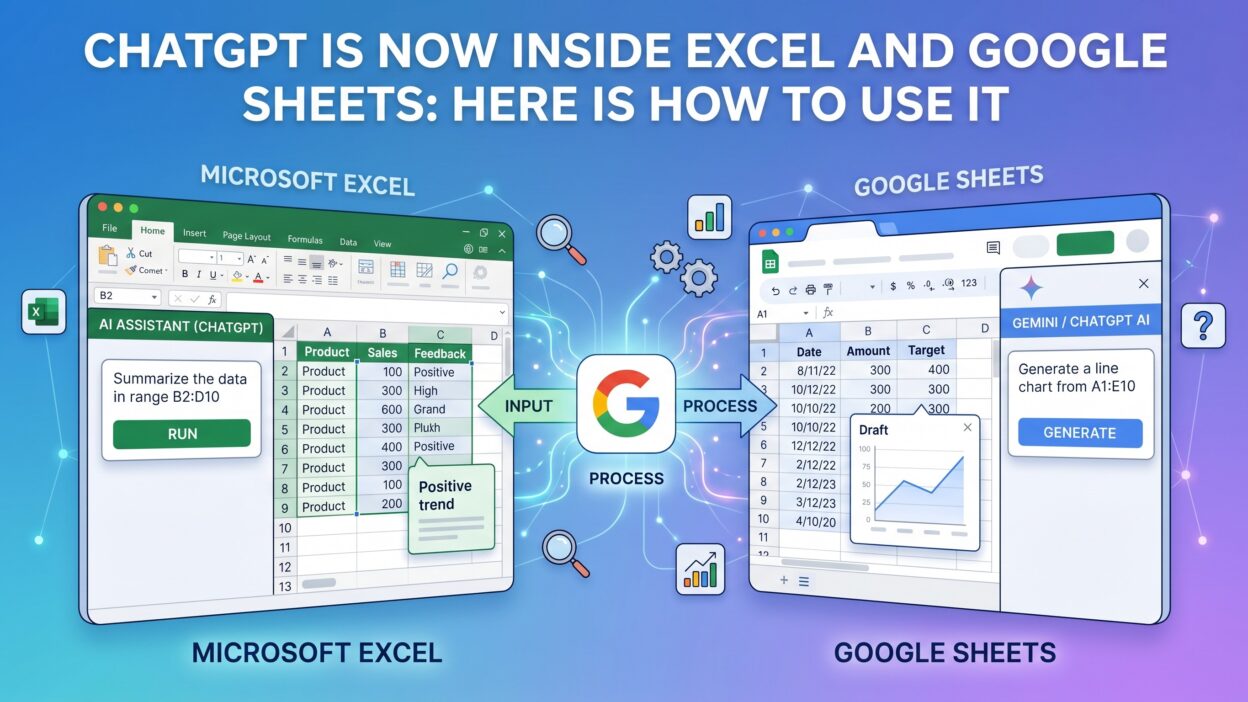
Microsoft built its AI layer for Excel through Microsoft Copilot. Copilot runs on the same underlying technology as ChatGPT. It sits natively inside the Excel interface. You see a Copilot pane on the right side of your screen. You type your request. Copilot responds with formulas, insights, and data suggestions.
This is the most direct form of ChatGPT in Excel and Google Sheets on the Excel side. It requires a Microsoft 365 subscription. Business and enterprise plans include Copilot access. Personal plans have a limited version available as well.
How to Access Copilot in Excel
Open Excel with a Microsoft 365 subscription. Look for the Copilot icon in the Home tab ribbon. Click it. The Copilot pane opens on the right. Your spreadsheet data becomes the context for every request you make.
Copilot reads your data automatically. You do not need to paste anything. You just ask questions or give instructions. Copilot suggests formulas based on your column headers and data patterns. It highlights anomalies in your dataset. It writes pivot table logic without you touching the PivotTable Wizard.
What Copilot Can Do in Excel
Copilot in Excel handles a wide range of tasks. It writes formulas on demand. Describe the calculation you need. Copilot produces the correct formula syntax. It also explains formulas you already have. Paste a complex formula into the chat. Copilot breaks it down in plain language.
Data analysis is another strength. Ask Copilot to find trends in your sales data. It scans the numbers and surfaces patterns you might have missed. Ask it to flag outliers. It highlights unusual values instantly.
Copilot also generates charts. Describe the visualization you want. Copilot creates a draft chart based on your data. You edit the details from there. The entire chart creation process shrinks from minutes to seconds.
Using Third-Party ChatGPT Add-ins for Excel
Not every Excel user has a Microsoft 365 Copilot subscription. Many use third-party add-ins that bring ChatGPT directly into Excel. Tools like “ChatGPT for Excel” by APPS DO WONDERS are available in the Microsoft AppSource marketplace.
These add-ins connect to the OpenAI API. You enter your API key during setup. The add-in adds a custom function like =AI.ASK() or =GPT() to your formula bar. You call this function inside any cell. The AI processes your text prompt and returns a result directly into the cell.
This approach brings full ChatGPT in Excel and Google Sheets functionality into existing Excel workflows. No subscription upgrade needed. Just an OpenAI API key and the right add-in.
How ChatGPT Works Inside Google Sheets
Google Gemini: The Native AI in Google Sheets
Google built its own AI assistant into Google Sheets through Gemini. Gemini functions similarly to Copilot. It reads your spreadsheet. You ask questions or give it tasks. It generates formulas, summaries, and analysis without you needing to leave the sheet.
Gemini in Google Sheets requires a Google Workspace account with an active Gemini add-on. Business and enterprise Google Workspace plans include it. Individual users can access it through Google One AI Premium plans.
While Gemini is Google’s tool, the experience mirrors what ChatGPT in Excel and Google Sheets delivers on the Excel side. The workflow is nearly identical. The results are comparable.
How to Enable Gemini in Google Sheets
Open a Google Sheet inside a supported Google Workspace account. Look for the Gemini icon in the top-right corner. Click it. The Gemini side panel opens. Your sheet data becomes the active context.
Type your request in the panel. Gemini responds with formula suggestions, table analysis, or text summaries. You apply the suggestion directly to your sheet. The integration is seamless. No switching tabs. No copying and pasting between windows.
Using ChatGPT Add-ons for Google Sheets
Google Sheets also supports third-party add-ons that bring ChatGPT directly into the spreadsheet. The Google Workspace Marketplace offers several options. “GPT for Sheets and Docs” by Talarian is one of the most widely used.
This add-on installs custom functions into your sheet. Functions like =GPT(), =GPT_LIST(), and =GPT_TABLE() work inside any cell. You write a prompt as the function argument. ChatGPT processes it and returns the result inside the cell.
This is one of the most flexible ways to use ChatGPT in Excel and Google Sheets on the Sheets side. You can run bulk operations. Process an entire column of data with a single formula. Translate 500 rows of customer feedback. Classify product categories at scale. Summarize support tickets in batches.
Setting Up a ChatGPT Add-on in Google Sheets
Open Google Sheets. Click Extensions in the top menu. Select Add-ons, then Get add-ons. Search for “GPT for Sheets.” Click Install. Grant the necessary permissions. Once installed, go to Extensions again. Open the add-on settings. Enter your OpenAI API key. Save the settings.
Your custom GPT functions are now live. Type =GPT("Write a subject line for this email topic: Q4 Sales Update") into any cell. Hit Enter. ChatGPT returns its response directly in that cell. That is ChatGPT in Excel and Google Sheets made practical for everyday use.
Real Use Cases That Save Hours Every Week
Writing and Explaining Formulas
Formula writing is the most common use. You describe the calculation in plain English. The AI writes the Excel or Sheets formula for you. No syntax errors. No searching through documentation. No trial and error.
You also use it in reverse. You have a formula you did not write. You do not understand it. Paste it into the AI chat. Ask for an explanation. The AI walks you through it line by line. This alone saves developers and analysts enormous amounts of debugging time.
ChatGPT in Excel and Google Sheets makes formula knowledge accessible to every skill level. Beginners write advanced formulas. Experts troubleshoot complex logic faster.
Cleaning and Formatting Data
Raw data is messy. Names come in inconsistent formats. Phone numbers lack uniform structure. Dates use different separators. Addresses are incomplete. Manual cleanup takes hours.
AI-powered formulas clean this automatically. Ask ChatGPT to standardize your name column. It writes a formula that trims whitespace, fixes capitalization, and removes duplicates. Ask it to reformat dates. It produces the correct formula for any date format transformation.
Data cleaning used to be tedious, manual work. With ChatGPT in Excel and Google Sheets, it becomes a two-minute task.
Generating Text From Data
This use case is powerful and underused. Your spreadsheet holds raw data. You want to turn that data into readable text. Product descriptions. Email subjects. Customer summaries. Report narratives.
Use a GPT function in your sheet. Reference the relevant cells in your prompt. Ask ChatGPT to write a product description based on the name, category, and price in columns A, B, and C. It generates unique text for every row. Process 200 product listings in minutes. No copywriter needed for the first draft.
Translating and Classifying Data at Scale
Translation is another major time saver. You have customer feedback in multiple languages. You need it all in English. Instead of using an external tool for each row, write a =GPT() formula with a translation prompt. Apply it to the entire column. Every row translates in seconds.
Classification works the same way. You have a column of customer complaints. You need to tag each one by category — billing, shipping, product quality, or other. Write a classification prompt. Apply it to the column. ChatGPT tags every complaint accurately. What used to take hours of manual labeling takes minutes.
This is ChatGPT in Excel and Google Sheets working at its most productive level.
Building Dynamic Dashboards Faster
Dashboard creation usually requires expertise. You need to know which chart type fits which data. You need to structure data correctly before building visuals. You need to write the logic that powers summary tables.
AI assistance speeds up every step. Describe the dashboard you want. Copilot or Gemini suggests the structure. It writes the formulas for summary metrics. It recommends chart types based on your data. You make the final decisions. The AI does the heavy lifting.
Teams that used to spend a full day building a report now finish in two hours. That time difference compounds over weeks and months.
Automating Repetitive Tasks
Repetitive spreadsheet work drains productivity. Copying values between sheets. Reformatting reports each week. Recalculating the same metrics with new numbers. These tasks consume hours that should go toward analysis and decision-making.
AI inside your spreadsheet automates the logic behind repetitive tasks. You write the formula once. The AI helps you make it dynamic. The spreadsheet updates itself when new data arrives. You stop doing manual work that a well-built formula can handle.
ChatGPT in Excel and Google Sheets transforms static spreadsheets into living tools that work for you.
Tips for Getting the Best Results From AI in Spreadsheets
Write Clear and Specific Prompts
The quality of the AI’s output depends on the quality of your input. Vague prompts produce vague results. Specific prompts produce useful output immediately.
Do not write: “Help me with my data.”
Write: “Write a Google Sheets formula that looks up the value in column A, finds the matching row in Sheet2, and returns the value from column C.”
Specificity is the single most important habit when using ChatGPT in Excel and Google Sheets. Develop it early. It saves countless iterations.
Always Verify Formula Output Before Applying It at Scale
AI-generated formulas work correctly most of the time. They are not perfect every time. Test every formula on a small data sample first. Confirm the output is accurate. Then apply it across your full dataset.
This verification habit protects you from errors that multiply across thousands of rows. Catch the mistake on ten rows. Not on ten thousand.
Give the AI Context About Your Data Structure
Tell the AI what your columns contain. Tell it the data types. Tell it what the formula needs to return. The more context you provide, the more accurate the output becomes. Think of the AI as a skilled colleague who does not know your spreadsheet. Brief them properly. They will deliver better work.
Use Iterative Prompting for Complex Problems
Complex spreadsheet logic rarely solves itself in one prompt. Start with the core logic. Get a working formula. Then ask the AI to add conditions. Then ask it to handle edge cases. Build the solution in layers. Each prompt refines the previous output.
This approach works better than trying to describe a fully complex formula in one prompt. It also helps you understand the logic as it builds. Understanding your own formulas matters. Especially when something breaks later.
FAQs About ChatGPT in Excel and Google Sheets
Is ChatGPT in Excel and Google Sheets free to use?
Some features are free. Microsoft offers limited Copilot access in certain Microsoft 365 plans. Google offers Gemini in specific Workspace tiers. Third-party add-ons that connect to the OpenAI API require an API key. OpenAI charges for API usage based on the number of tokens processed. Costs are generally low for individual users. Enterprise usage at scale carries higher costs.
Do I need technical skills to use ChatGPT in Excel and Google Sheets?
No. That is the entire point. ChatGPT in Excel and Google Sheets removes the technical barrier. You write plain English requests. The AI handles the technical execution. Beginners use it on day one. Experienced users unlock deeper value over time. No coding required. No advanced spreadsheet training needed.
Is my spreadsheet data safe when I use these AI tools?
Data privacy is a legitimate concern. Microsoft and Google have their own data handling policies for Copilot and Gemini. When you use third-party add-ons that connect to the OpenAI API, your prompt data goes through OpenAI’s servers. Read the privacy terms of any add-on before installing it. Avoid pasting sensitive personal data into AI prompts. Use anonymized or sample data when testing.
Can ChatGPT write macros or scripts for Excel and Google Sheets?
Yes. ChatGPT generates VBA code for Excel macros. It also writes Google Apps Script for Sheets automation. Describe the automation you want. The AI writes the code. You paste it into the script editor and run it. This extends AI assistance beyond formulas into full workflow automation.
What is the difference between Microsoft Copilot and using a ChatGPT add-in?
Copilot is native. Microsoft built it directly into Excel. It accesses your data without any setup beyond your subscription. A ChatGPT add-in connects to OpenAI’s external API. You control the model and API key. Add-ins offer more flexibility for custom functions. Copilot offers a more polished, integrated experience. Both deliver strong value as approaches to ChatGPT in Excel and Google Sheets.
Can I use ChatGPT in Excel and Google Sheets on mobile?
Yes, with limitations. Microsoft 365 mobile and Google Sheets mobile both support Copilot and Gemini on supported devices. Third-party add-ins have variable mobile support. Desktop use offers the most complete experience for complex workflows. Mobile works well for quick queries and simple formula requests.
Does AI replace the need to learn spreadsheets?
No. Understanding your data and what you want to accomplish still matters. AI helps you execute faster. It does not replace judgment, analysis, or strategic thinking. Knowing the basics of spreadsheet structure makes you a better AI user. You prompt more precisely. You verify output more confidently.
Conclusion

Spreadsheets are not going away. Data lives in them. Decisions get made from them. Reports flow through them. What has changed is how much effort they require from you.
ChatGPT in Excel and Google Sheets takes the hard parts off your plate. Formula writing becomes a conversation. Data cleaning becomes a one-step process. Report building becomes faster than ever. Complex analysis no longer requires a specialist.
The tools exist today. The setup takes minutes. The learning curve is genuinely short. You do not need to be a power user to get power-user results.
Start small. Install an add-on. Ask it to write one formula. See the result. That first success will show you what is possible. From there, the possibilities expand quickly.
ChatGPT in Excel and Google Sheets is not the future of spreadsheet work. It is the present. The professionals who adopt it now will outpace the ones who wait. The time you save compounds. The output quality improves. The frustration disappears.
Open your spreadsheet. Try one AI prompt today. The difference will be immediate.