
TL;DR Calendly HubSpot integration connects your scheduling tool with your CRM in minutes. Your sales team books meetings faster. Your marketing team tracks lead activity in one place. Your support team sees every scheduled call without switching tabs.
This guide walks you through the full Calendly HubSpot integration setup. You will learn how data moves between both platforms. You will learn common errors and their fixes. You will also learn best practices that real teams use every day. By the end, you will run your own Calendly HubSpot integration with confidence.
Table of Contents
What Is Calendly HubSpot Integration
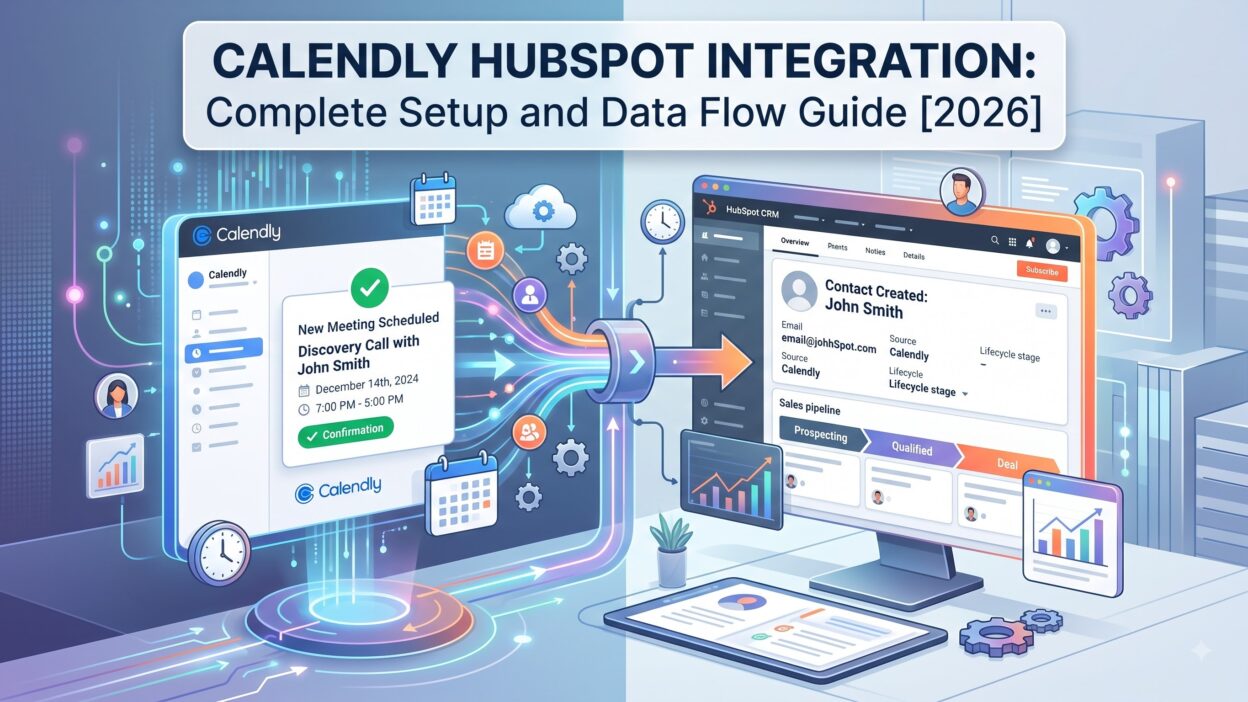
Calendly HubSpot integration links your Calendly scheduling account to your HubSpot CRM account. Every meeting booked through Calendly syncs to HubSpot automatically. Contact records update on their own. Meeting details land on the right timeline. No one copies data by hand anymore.
This integration works through Calendly’s native HubSpot app or through the HubSpot App Marketplace. Once connected, both tools talk to each other in real time. A prospect books a demo call through your Calendly link. HubSpot creates a new contact or updates an existing one within seconds. The meeting shows up as a logged activity on that contact’s page.
Teams use Calendly HubSpot integration to close the gap between scheduling and sales tracking. Sales reps stop guessing who booked a call. Marketing teams stop losing track of demo requests. Everyone works from the same data.
Why Your Business Needs Calendly HubSpot Integration
Manual scheduling creates gaps in your sales process. Calendly HubSpot integration closes those gaps and gives your team a clear view of every prospect interaction.
Save Time on Manual Data Entry
Reps waste hours copying meeting details into HubSpot by hand. Calendly HubSpot integration removes this task completely. Every booking, reschedule, and cancellation syncs on its own. Your team spends that saved time on actual selling instead of admin work.
Improve Lead Response Time
Speed matters in sales. A lead who books a call through Calendly appears in HubSpot right away. Your rep gets notified instantly. Follow-up happens faster. Calendly HubSpot integration cuts the lag between booking and outreach down to almost nothing.
Better Sales and Marketing Alignment
Marketing needs to know which leads booked calls. Sales needs to know which leads came from which campaign. Calendly HubSpot integration bridges this gap. Both teams view the same contact record. Both teams see the same meeting history. Reporting becomes accurate because the data source stays consistent.
Prerequisites Before You Start Calendly HubSpot Integration
Before you connect Calendly and HubSpot, check a few things first. You need an active Calendly account with admin access. Free Calendly plans support basic HubSpot integration, but paid plans unlock advanced workflows and custom field mapping.
You also need a HubSpot account with permission to install apps. Marketing Hub, Sales Hub, or the free CRM all support Calendly HubSpot integration. Confirm your HubSpot user role allows app installation, since some team members lack this access by default.
Review your existing HubSpot contact properties too. Clean property names make field mapping much easier during setup. Remove duplicate fields before you begin, since messy data causes sync errors later.
Step-by-Step Calendly HubSpot Integration Setup Guide
Follow these steps in order. Each step builds on the last one, so skipping ahead often causes connection errors.
Connect Your Calendly Account
Log into your Calendly account and open the Integrations tab. Search for HubSpot in the app directory. Click on the HubSpot card to start the connection process. Calendly asks you to sign in to your HubSpot account next. Enter your HubSpot login credentials and approve the requested permissions. Calendly needs access to contacts, meetings, and workflow triggers to function properly.
Connect Your HubSpot Account
Once you approve access, HubSpot opens its own confirmation screen. Review the list of permissions Calendly requests. Grant access to contact creation, contact updates, and activity logging. Click confirm to finish the authorization. Your Calendly HubSpot integration connection now shows as active on both dashboards.
Map Calendly Fields to HubSpot Properties
Field mapping decides where your Calendly data lands inside HubSpot. Open the mapping settings inside your Calendly integration panel. Match each Calendly field, like name, email, and event type, to its matching HubSpot property. Create custom properties in HubSpot first if you need fields that don’t exist yet. Double-check every mapped field before you save, since incorrect mapping sends data to the wrong place.
Set Up Meeting Triggers and Workflows
Decide what happens after someone books a meeting. Calendly HubSpot integration lets you trigger HubSpot workflows automatically. A booked demo call can add a contact to a nurture sequence. A cancelled meeting can alert the assigned sales rep. Build these workflows inside HubSpot’s automation tool, then link them to your Calendly event types.
Test Your Calendly HubSpot Integration
Never skip testing. Book a test meeting through your own Calendly link. Check your HubSpot contact record right after. Confirm the meeting appears on the timeline with correct date, time, and event type. Test a cancellation too, and confirm HubSpot updates the record properly. Fix any mismatched fields before you roll this out to your full team.
How Data Flows Between Calendly and HubSpot
Understanding data flow helps you troubleshoot problems fast and trust your reports.
Contact Creation and Updates
When someone books a meeting, Calendly sends their name and email to HubSpot instantly. HubSpot checks for an existing contact with that email first. It updates the existing record if one exists. It creates a brand new contact if none exists. This process runs in the background without any manual work from your team.
Meeting and Activity Logging
Every booked meeting appears as a logged activity on the contact timeline. This includes the meeting date, time, host name, and event type. Reschedules update the same activity entry instead of creating duplicates. Cancellations mark the activity as cancelled, keeping your history accurate and complete.
Deal and Pipeline Updates
Calendly HubSpot integration can also touch your deal records. Sales teams often trigger a deal stage change when a prospect books a demo. A workflow can move a deal from “Lead” to “Meeting Scheduled” the moment Calendly confirms a booking. This keeps your pipeline reporting accurate without any rep touching the deal manually.
Calendly HubSpot Integration Use Cases
Different teams use Calendly HubSpot integration in different ways. Here is how each department gets value from the same connection.
Sales Teams
Sales reps use Calendly HubSpot integration to book discovery calls and demos without back-and-forth emails. Every booked call logs against the right contact and deal. Reps see full meeting history before every call, which makes prep faster and calls more productive.
Marketing Teams
Marketing teams track which campaigns drive booked meetings. Calendly HubSpot integration attaches booking data to the contact’s original source. This shows marketing exactly which channels bring in sales-ready leads, not just website traffic.
Customer Success Teams
Support and success teams use Calendly HubSpot integration for onboarding calls and check-ins. Every scheduled session logs on the customer record automatically. Success managers see the full relationship history in one screen, including past calls and outcomes.
Common Calendly HubSpot Integration Issues and Fixes
Even a solid Calendly HubSpot integration runs into hiccups sometimes. Here are the most common ones and how to fix them.
Contacts fail to sync when email fields don’t match exactly between systems. Check for typos or extra spaces in the email field mapping. Reconnect the integration if the sync stops working after a HubSpot password change, since old authorization tokens expire.
Duplicate contacts appear when two different email addresses get used for the same person. Merge these records manually inside HubSpot and set a rule to prevent future duplicates. Missing meeting data usually points to a broken field mapping. Open your mapping settings and confirm every field still points to an active HubSpot property.
Workflow triggers sometimes fail to fire. This happens when a HubSpot workflow condition doesn’t match the actual data Calendly sends. Review your workflow enrollment triggers and compare them against your live Calendly event data.
Calendly HubSpot Integration Best Practices
Set clear naming conventions for your Calendly event types before you connect anything. Consistent names make field mapping and reporting far easier down the road.
Audit your HubSpot properties every quarter. Remove unused fields and clean up duplicate properties, since a messy CRM slows down your entire Calendly HubSpot integration setup. Assign one team member to own the integration long term. This person handles updates, fixes broken workflows, and trains new hires on the system.
Test new workflows in a sandbox contact before you push them live. This habit catches mapping errors early and protects your real contact data from bad automation.
Review your meeting-to-deal workflows monthly. Sales processes change often, and your Calendly HubSpot integration should match your current pipeline stages, not last year’s process.
Calendly HubSpot Integration vs Native HubSpot Meetings
HubSpot offers its own built-in meeting scheduler, so some teams wonder if they need Calendly at all. Native HubSpot meetings work fine for basic scheduling needs. Calendly HubSpot integration offers more flexibility for complex booking rules, team round-robin scheduling, and advanced availability settings.
Calendly supports more calendar types and works better across large sales teams with varied schedules. HubSpot’s native tool keeps everything inside one platform, which appeals to smaller teams that want fewer moving parts. Larger teams with complex booking needs usually choose Calendly HubSpot integration for its deeper customization options.
Cost also plays a role here. HubSpot’s meeting tool comes bundled with your existing subscription. Calendly requires its own separate plan, though the added scheduling features often justify the cost for growing sales teams.
FAQs About Calendly HubSpot Integration
Does Calendly HubSpot integration work with the free HubSpot CRM?
Yes, it works with the free HubSpot CRM. You get basic contact syncing and activity logging without any paid HubSpot plan. Advanced workflow automation may need a paid HubSpot tier.
How long does Calendly HubSpot integration setup take?
Most teams finish setup within thirty minutes. Field mapping and workflow creation can add extra time depending on how many custom properties you need to configure.
Can I sync past Calendly meetings to HubSpot?
No, Calendly HubSpot integration only syncs meetings booked after you connect the accounts. Past meeting data does not transfer automatically.
Does Calendly HubSpot integration support team scheduling?
Yes, it supports round-robin and collective scheduling for teams. Bookings assign to the correct rep automatically based on your Calendly team settings.
What happens if I disconnect Calendly HubSpot integration?
Your existing HubSpot contact data stays in place. New meetings stop syncing once you disconnect, so future bookings require manual entry until you reconnect.
Can Calendly HubSpot integration trigger email sequences?
Yes, a booked meeting can enroll a contact into a HubSpot email sequence through workflow automation. This requires a Sales Hub or Marketing Hub subscription with workflow access.
Is Calendly HubSpot integration secure for customer data?
Yes, both platforms use encrypted connections for data transfer. Access permissions stay limited to the scopes you approve during setup, so you control exactly what data moves between systems.
Read More:-Top 7 RevOps Challenges and How to Solve Them
Conclusion

Calendly HubSpot integration saves your team hours of manual work every week. Contacts update on their own. Meetings log automatically. Sales and marketing finally work from the same data. This guide covered the full setup process, data flow, common issues, and best practices you need to run a smooth integration.
Start with a clean HubSpot account and clear field mapping. Test everything before you roll it out to your full team. Review your workflows regularly as your sales process changes. A well-maintained Calendly HubSpot integration keeps your CRM accurate and your team focused on selling instead of data entry.