
Introduction
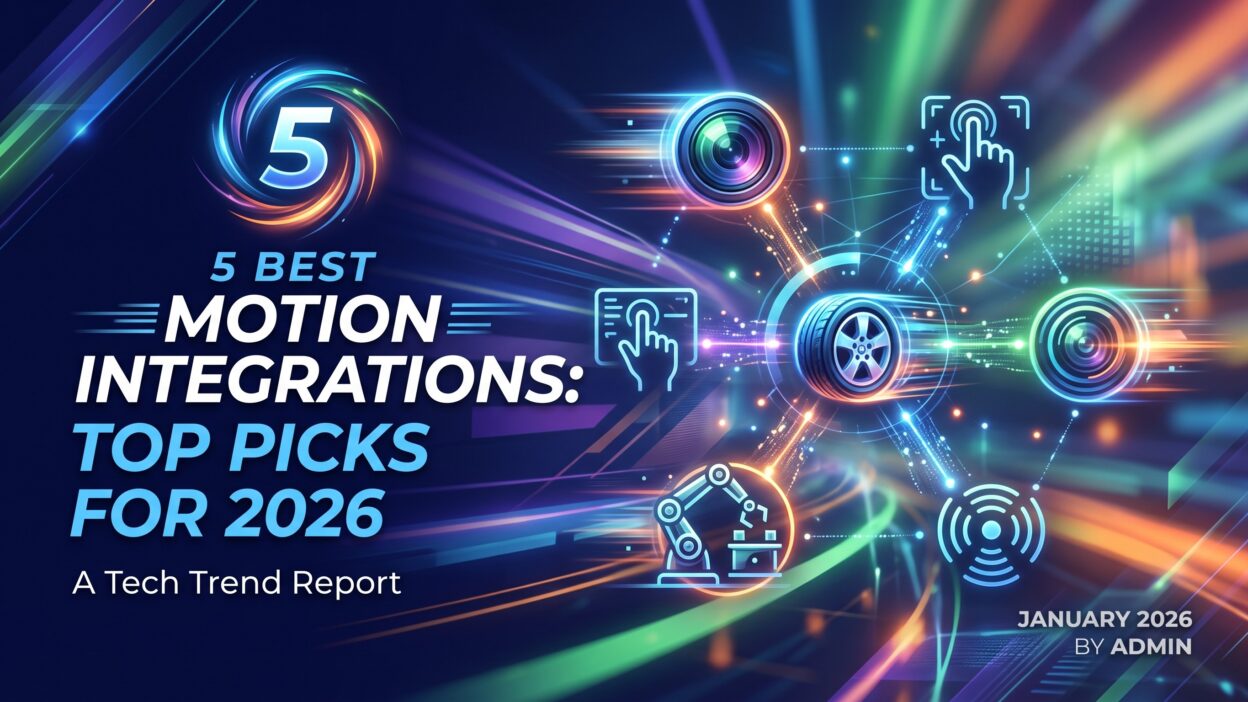
TL;DR Motion has become one of the top choices for people who want their calendar and task list to work together. But a task app alone only solves half the problem. The real value shows up once you connect it to the other tools your team already uses. That is where Motion integrations come in.
In this guide, we cover the five best Motion integrations for 2026. Each one solves a real workflow gap. We also explain how to set them up, who benefits most, and what to watch out for. If you already use Motion or you are thinking about switching to it, this list will help you get more out of every connection.
By the end, you will know exactly which Motion integrations deserve a spot in your daily workflow, and why they matter more this year than ever before.
Table of Contents
What Are Motion Integrations and Why Do They Matter?
A Quick Definition of Motion Integrations
Motion integrations connect the Motion app to other software you use every day. They pull data in both directions. Your calendar updates Motion. Motion updates your calendar. Nothing sits in a silo anymore.
The Real Problem Motion Integrations Solve
Most professionals juggle five or six apps just to plan a single day. A calendar app holds meetings. A chat app holds requests. An email inbox holds deadlines buried in threads. Without integrations, you copy information by hand between all of them. That wastes time and creates errors. Motion integrations remove that manual step. They sync data automatically, so your schedule stays accurate without constant babysitting.
Who Benefits Most From Motion Integrations
Freelancers benefit because they juggle multiple clients across different tools. Small teams benefit because they need shared visibility without extra meetings. Agencies benefit because deadlines shift daily and manual updates cannot keep pace. Anyone who feels buried under app-switching will notice the difference within the first week of using solid Motion integrations.
How We Chose the Best Motion Integrations for 2026
Our Selection Criteria
We looked at five factors for every integration on this list. Setup time had to stay under ten minutes. Data sync had to run in real time, not on a delay. Each tool needed a large existing user base, so it actually helps most readers. We also checked pricing, since a great integration loses value if it locks essential features behind an expensive plan. Finally, we tested each connection ourselves inside Motion to confirm it works as advertised in 2026.
Why 2026 Changes the Picture
Motion added deeper API support this year. That opened the door for smoother two-way syncing across more platforms. A few integrations that felt clunky last year now run without a hitch. This list reflects those updates, not outdated information from older reviews.
1. Motion + Google Calendar Integration
What This Integration Does
The Google Calendar integration sits at the center of most Motion setups. It pulls every event from your Google Calendar into Motion and pushes Motion-scheduled tasks back out to Google Calendar. You see one unified timeline instead of two competing ones.
Why This Ranks as a Top Motion Integration
Google Calendar remains the most widely used calendar tool among professionals and students alike. A Motion integration that skips Google Calendar would miss most of its audience. This connection also updates instantly. Move a meeting in Google Calendar, and Motion reshuffles your task list around the new time within seconds.
Setup Steps
Open Motion settings and select Calendar Connections. Choose Google Calendar from the list. Sign in with your Google account and grant permission. Motion then imports your existing events and starts two-way syncing right away. The whole process takes about three minutes.
Best Use Case
This integration works best for people who live inside their calendar. Consultants with back-to-back client calls rely on it heavily. Students juggling classes and study blocks also find it useful, since Motion auto-schedules study sessions around fixed class times pulled straight from Google Calendar.
Limitations to Know
Multiple calendar accounts can sometimes cause duplicate entries if permissions overlap. Double-check your calendar settings after the first sync to confirm nothing appears twice. Outside of that minor issue, this remains the most dependable of all Motion integrations available right now.
2. Motion + Slack Integration
What This Integration Does
The Slack integration turns your task updates into Slack notifications. Your team sees task completions, deadline changes, and schedule shifts directly inside a Slack channel. No one needs to open Motion just to check on progress.
Why Teams Choose This Motion Integration
Slack already serves as the communication hub for thousands of teams. Adding Motion task visibility inside that same hub cuts down on status-check meetings. Managers get updates without interrupting anyone’s focus time, which fits neatly with Motion’s own focus-block scheduling.
Setup Steps
Go to the Integrations tab inside Motion and click Slack. Authorize the connection through your workspace admin account. Pick which channel receives updates, then set your notification preferences. You can choose to receive only overdue task alerts or every single update, depending on how much noise your team can handle.
Best Use Case
Remote teams get the most value here. Distributed team members often work across different time zones, so async updates through Slack replace the need for a daily standup call. Project managers can glance at a Slack channel each morning and know exactly where every task stands.
Limitations to Know
Heavy notification volume can clutter a busy Slack channel fast. Set filters early, or your team will start muting the integration within a week. Once tuned correctly, though, this stands out as one of the more practical Motion integrations for collaborative teams.
3. Motion + Zoom Integration
What This Integration Does
The Zoom integration adds a meeting link automatically to any event Motion schedules. You no longer generate a Zoom link by hand for every call. Motion handles it the moment the meeting lands on your calendar.
Why This Motion Integration Saves Time
Manually creating and pasting Zoom links across dozens of weekly meetings adds up. This integration removes that repetitive task completely. It also reduces the classic mistake of sending the wrong link to the wrong meeting, since Motion generates a fresh one tied to the correct event every time.
Setup Steps
Inside Motion, open the Meeting Settings panel and select Zoom. Log in with your Zoom credentials and confirm the connection. From that point forward, every new meeting you schedule in Motion carries a live Zoom link by default.
Best Use Case
Sales teams and client-facing roles benefit the most from this pairing. Anyone running five or more calls a day will feel the time saved almost immediately. Coaches and consultants who bill by the session also appreciate the reduced friction, since clients get a working link without extra back-and-forth emails.
Limitations to Know
Free Zoom accounts cap meeting length at forty minutes for group calls, and that limit carries over regardless of the Motion connection. Upgrade your Zoom plan first if your sessions run longer, since the integration itself cannot bypass Zoom’s own account restrictions.
4. Motion + Gmail Integration
What This Integration Does
The Gmail integration lets Motion read deadline-related information straight from your inbox and turn it into scheduled tasks. It also lets you reply to emails and block focus time for follow-ups without leaving your inbox view.
Why This Motion Integration Matters for Busy Inboxes
Email remains where most deadlines first appear, buried inside client messages or project updates. Manually transferring every deadline into a task manager wastes real time and creates missed items. This integration closes that gap by turning emails into trackable tasks with a few clicks.
Setup Steps
From the Motion dashboard, select Email Integrations and choose Gmail. Grant the requested permissions, which allow Motion to scan subject lines and flagged messages for task-worthy content. You control exactly which labels or folders Motion monitors, so it never scans your entire inbox without permission.
Best Use Case
Freelancers who manage multiple clients through email threads see the biggest benefit. Customer support leads also use this pairing to convert flagged tickets into scheduled follow-up tasks automatically, keeping response times tight.
Limitations to Know
The task-detection feature works from patterns, not perfect understanding, so it occasionally flags a message that is not actually a deadline. Review auto-created tasks weekly during your first month to fine-tune accuracy. Even with that small adjustment period, this ranks among the most valuable Motion integrations for inbox-heavy roles.
5. Motion + Zapier Integration
What This Integration Does
Zapier connects Motion to more than five thousand other apps, far beyond what Motion supports natively. Every time a trigger happens in another app, Zapier can create, update, or complete a task inside Motion automatically.
Why This Is the Most Flexible Motion Integration
No single integration list can cover every tool a business uses. Zapier fills that gap. A new lead in your CRM can spawn a Motion task. A form submission on your website can trigger a follow-up reminder. This flexibility makes Zapier the backbone integration for teams with unusual or specialized software stacks.
Setup Steps
Create a free or paid Zapier account, then search for Motion inside the Zapier app directory. Pick a trigger app, such as a form tool or CRM, and connect it to a Motion action, like creating a new task. Zapier walks you through mapping each field, and the automation runs in the background from that point forward.
Best Use Case
Agencies running client intake forms use this constantly. Every new form submission becomes a Motion task without anyone touching a keyboard. E-commerce teams also connect order platforms through Zapier, turning shipping delays or refund requests into scheduled follow-ups inside Motion.
Limitations to Know
Zapier’s free plan limits how many automated tasks, called Zaps, you can run each month. Heavy users will need a paid Zapier tier to avoid hitting that cap. The setup also takes longer than the native integrations on this list, closer to fifteen minutes for a first-time Zap. Still, no other option matches its reach across so many different platforms.
Motion Calendar Integration vs Motion Task Management Integration: What Is the Difference?
A Motion calendar integration focuses on time. It syncs events, meetings, and blocked hours between Motion and your calendar app. A Motion task management integration focuses on work items instead. It pulls tasks, tickets, or action items from another tool and schedules them inside Motion automatically.
Most people need both types working together. The calendar side keeps your day accurate. The task side keeps your to-do list realistic. Google Calendar and Zoom fall into the calendar category. Gmail and Zapier lean more toward task management, since they generate new to-do items rather than just syncing existing events.
Understanding this difference helps you prioritize setup order. Start with a calendar integration first, since it forms the backbone of Motion’s auto-scheduling feature. Add task-focused integrations once your calendar sync feels stable. Rushing both at once can create a confusing first week, with tasks and events competing for the same open time slots before you learn how Motion balances them.
Tips to Get the Most Out of Motion Integrations
Start With One Integration at a Time
Connecting five tools on day one overwhelms most users. Add Google Calendar first. Let it run for a few days. Add the next integration once the first one feels natural.
Review Permissions Regularly
Integrations request access to sensitive data, including emails and calendar details. Check your permission settings every few months. Remove access for any tool you no longer use.
Set Clear Notification Rules
Too many alerts push people to ignore an integration entirely. Adjust Slack and email notification settings early, so you only see updates that actually require action.
Watch for Duplicate Tasks
Multiple integrations pulling from overlapping sources can create the same task twice. Check your task list weekly during the first month after adding a new connection.
Keep Your Motion Plan Matched to Your Integration Needs
Some advanced integrations only work on paid Motion tiers. Confirm your plan supports the integration before you spend time on setup, so you avoid a frustrating dead end halfway through.
Frequently Asked Questions About Motion Integrations
Are Motion integrations free to use?
Some Motion integrations come free with any paid Motion subscription. Others, like advanced Zapier automations, require a separate subscription to the third-party tool itself.
Can I use multiple Motion integrations at the same time?
Yes. Most users run three or four integrations together without any conflict. Just introduce them one at a time to avoid confusion during setup.
Does Motion support Outlook alongside Google Calendar?
Yes, Motion supports Outlook as a calendar integration option. The setup process mirrors the Google Calendar steps covered earlier in this guide.
Will Motion integrations slow down my computer or app performance?
No noticeable slowdown occurs with standard integrations. Motion processes syncing on its own servers, so your device handles minimal extra load.
How do I know if a Motion integration is working correctly?
Check the Integrations dashboard inside Motion. A green status indicator confirms an active, healthy connection. A red or yellow indicator flags an issue that needs your attention.
Can I disconnect a Motion integration without losing my data?
Yes. Disconnecting an integration stops future syncing but keeps existing tasks and events in place. Nothing gets deleted automatically when you remove a connection.
Which Motion integration should beginners set up first?
Google Calendar or Outlook works best as a starting point. It forms the foundation for Motion’s auto-scheduling feature, and every other integration builds on top of that calendar sync.
Read More:-How to Build Direct Mail Campaigns That Convert in 2026
Conclusion

Motion integrations turn a solid task manager into a complete command center for your day. Google Calendar keeps your schedule accurate. Slack keeps your team informed. Zoom removes a repetitive manual step. Gmail catches deadlines before they slip through your inbox. Zapier connects everything else you rely on, even tools far outside Motion’s native list.
You do not need all five integrations on day one. Start with the calendar connection, since it anchors everything Motion does. Add the others as your workflow demands more automation. Within a month, most users report noticeably less time spent switching between apps just to stay organized.
The best Motion integrations for 2026 share one trait: they remove manual work without adding new complexity. Pick the ones that match your daily routine, set clear notification rules, and review your permissions occasionally. Do that, and Motion stops feeling like just another app. It becomes the single place where your entire workday actually comes together.