
Introduction
TL;DR Google AI Studio is one of the most powerful free developer tools available today. Developers, researchers, and even non-technical users are flocking to it. They want to explore what Gemini models can truly do.
This Google AI Studio Guide breaks down every feature in plain language. You do not need a PhD to understand this tool. You just need curiosity and a Google account.
Whether you build apps, write content, or analyze data, this guide covers it all. You will learn how to navigate the platform, use each feature, and get the most out of Gemini’s capabilities. By the end of this Google AI Studio Guide, you will feel confident using the platform from day one.
What Is Google AI Studio?
Google AI Studio is a browser-based development environment. Google built it to give developers direct access to Gemini models. You can test prompts, fine-tune behavior, and build AI-powered applications — all inside one interface.
The platform lives at aistudio.google.com. It requires no installation. You just log in with your Google account and start experimenting immediately.
Google launched AI Studio as a replacement for the older MakerSuite platform. The rebranding came with major upgrades. The interface became cleaner. The model access became broader. The API integration became more seamless.
This Google AI Studio Guide focuses on the current version of the platform. Everything described here reflects features available as of 2025.
Who Should Use Google AI Studio?
Many different people benefit from this platform. Software developers use it to prototype AI features. Content creators use it to explore generative writing tools. Data scientists use it to process large documents. Students use it to learn about large language models.
You do not need to write code to get started. The playground-style interface lets anyone craft prompts and see results instantly. However, if you do write code, the platform offers deep API access through Google’s Gemini API.
The platform supports multiple Gemini model versions. Each model has different speed and capability tradeoffs. This Google AI Studio Guide explains which model fits which use case.
How to Access and Set Up Google AI Studio
Setup takes less than five minutes. Visit aistudio.google.com. Sign in with any Google account. Accept the terms of service. You are now inside the platform.
The left sidebar shows your main navigation options. You will see options like “Create new prompt,” “My library,” and “Get API key.” The central workspace is where all the action happens.
Google AI Studio offers a free tier. It gives you generous usage limits for testing. If you build production applications, you will want to enable billing through Google Cloud. Paid access unlocks higher request rates and access to the most powerful Gemini models.
Getting Your API Key
The API key is essential for building applications. Click “Get API key” in the left sidebar. Select “Create API key in new project.” Copy the key and store it securely. You will use this key to call Gemini models from your own code.
This step is one of the first things covered in any comprehensive Google AI Studio Guide. The API key connects your external applications to the platform. Without it, you cannot build outside the browser interface.
Understanding the Three Prompt Types
Google AI Studio offers three core prompt modes. Each serves a different purpose. Choosing the right mode dramatically improves your results.
Freeform Prompts
Freeform prompts are the most flexible option. You type anything into the input box. The model responds based on your instructions. No structure is required.
This mode works well for one-off tasks. Ask the model to summarize a document, write a poem, or explain a concept. The responses are immediate and helpful.
Freeform prompts are ideal for experimentation. You test different phrasings and see how the model responds differently each time. This is where most users begin their journey with this Google AI Studio Guide.
Structured Prompts (Few-Shot Prompting)
Structured prompts let you provide examples to guide the model. You show the model an input-output pair. Then the model learns to replicate that pattern.
Imagine you want the model to extract product names from customer reviews. You show it three examples of reviews paired with extracted product names. The model then applies that logic to new reviews automatically.
This approach is called few-shot prompting. It is extremely powerful for classification, extraction, and transformation tasks. Developers use it heavily in production applications.
Chat Prompts
Chat prompts create a conversational experience. You set a system instruction at the top. Then you exchange messages with the model in a turn-by-turn format.
This mode is ideal for building chatbots, virtual assistants, and customer support tools. The model maintains context across the conversation. It remembers earlier turns and uses them to shape later responses.
You can test full conversation flows here. You can also simulate user messages yourself to see how the model behaves across different scenarios. This feature alone makes the Google AI Studio Guide worth reading for anyone building conversational AI.
The System Instructions Feature
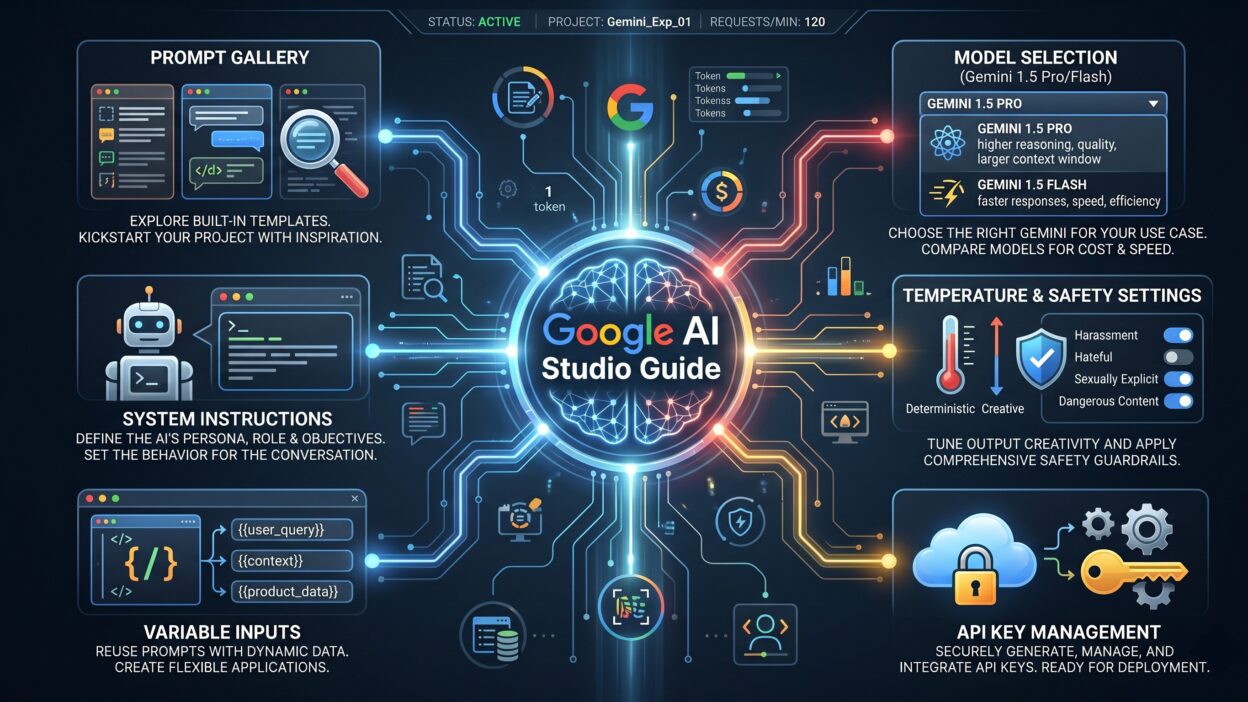
System instructions are one of the most underutilized features in Google AI Studio. They give you direct control over model behavior before any user message appears.
Think of system instructions as a briefing document for the AI. You tell it who it is, what it does, and how it should respond. The model follows these instructions throughout the entire conversation.
Here is a practical example. Suppose you are building a customer support bot for a software company. Your system instruction might say: “You are a helpful support agent for TechCorp. You only answer questions related to our software products. You speak in a friendly, professional tone.”
Now every user message gets filtered through that context. The model stays on topic. It uses the right tone. It does not drift into unrelated territory.
Why System Instructions Matter for SEO and Content Tools
Many content teams use Google AI Studio to build internal writing assistants. System instructions let you encode brand voice guidelines directly into the model’s behavior. The assistant then produces on-brand content every time.
This is a game-changer for marketing teams and agencies. Instead of correcting AI output manually, you define the rules upfront. The model follows them automatically. No comprehensive Google AI Studio Guide would skip this feature.
System instructions support long, detailed text. You can include formatting rules, prohibited topics, required disclaimers, and even examples of good and bad responses. The more specific your instructions, the more consistent the output.
Model Selection in Google AI Studio
The platform gives you access to multiple Gemini models. Each model has distinct strengths. Choosing the right one matters for both cost and performance.
Gemini 1.5 Flash
Gemini 1.5 Flash is the fastest model available. It prioritizes speed over depth. Use it when you need quick responses and high throughput. It handles simple summarization, classification, and generation tasks extremely well.
Flash has a large context window. It can process up to one million tokens in a single request. That means you can feed it entire books, massive codebases, or lengthy research papers.
Gemini 1.5 Pro
Gemini 1.5 Pro is the most capable model in the standard lineup. It handles complex reasoning, nuanced writing, and multi-step problem solving. It is slower than Flash but delivers significantly higher quality on demanding tasks.
Pro also supports the one-million-token context window. This is groundbreaking. No other widely available model matches this capacity. This Google AI Studio Guide strongly recommends Pro for tasks where quality matters more than speed.
Gemini 2.0 Flash
Gemini 2.0 Flash is the latest fast model. It improves on 1.5 Flash across nearly every benchmark. It is also multimodal by default. It can reason about text, images, audio, and video simultaneously.
For most developers building in 2025, 2.0 Flash is the go-to starting point. It balances speed, cost, and capability better than any previous model.
Multimodal Capabilities: Beyond Text
Google AI Studio is not just a text tool. It is fully multimodal. You can feed it images, audio files, video clips, and PDFs alongside your text prompts.
Image Understanding
Upload any image directly into the prompt interface. The model analyzes it. You can ask it to describe the image, extract text from it, identify objects, or reason about what it shows.
This opens up powerful use cases. Medical image analysis, document processing, product catalog management, and visual quality control all become accessible. You do not need specialized computer vision models. Gemini handles it natively.
Audio and Video Processing
Gemini models can process audio files. Upload a voice recording and ask for a transcript. Ask the model to summarize the key points. Ask it to identify the speakers’ tones or emotions.
Video processing works similarly. You can upload short video clips. The model watches the video and answers questions about it. This is genuinely remarkable technology and a key highlight in this Google AI Studio Guide.
PDF and Document Analysis
Upload a PDF and interact with it conversationally. Ask the model to find specific information, generate a summary, extract tables, or identify inconsistencies. The large context window means even lengthy legal contracts or research reports fit entirely within a single prompt.
Token Settings and Model Parameters
Google AI Studio exposes several model parameters. Understanding these settings helps you get more predictable, consistent results.
Temperature
Temperature controls creativity. A value of zero makes the model deterministic. It gives the same answer every time for the same prompt. A value of one or higher makes the model more creative and varied.
Use low temperature for factual tasks. Use higher temperature for creative writing and brainstorming. This Google AI Studio Guide recommends starting at 0.7 for general use.
Top-P and Top-K
These settings control how the model samples its next word. Top-P considers only the words that collectively make up P percent of the probability mass. Top-K limits the model to choosing from the K most likely words.
Most users leave these at default. Advanced users adjust them to fine-tune the diversity and coherence of outputs.
Max Output Tokens
This sets a hard limit on response length. If you want short answers, set this low. If you need detailed reports or full documents, set it high.
Always match this setting to your use case. Overly short limits truncate useful responses. Overly long limits waste tokens on unnecessary content.
The Code Execution Tool
Google AI Studio includes a built-in code execution feature. The model can write Python code and run it in a sandboxed environment. It then returns the actual output rather than just the code itself.
This is transformative for data analysis tasks. Ask the model to analyze a dataset, and it writes and runs the code to do so. It interprets the results and explains them in plain language.
You do not need to copy code into a separate environment. Everything happens inside the Google AI Studio interface. This dramatically reduces friction for developers and analysts.
The code execution tool works particularly well with uploaded files. Feed it a CSV file and ask analytical questions. The model writes the analysis code, runs it, and gives you insights immediately. Any thorough Google AI Studio Guide must emphasize this feature.
Grounding with Google Search
One of the most powerful advanced features is grounding. Grounding connects the model’s responses to real-time Google Search results.
Without grounding, the model answers from its training data. That data has a knowledge cutoff. Answers about recent events may be inaccurate or outdated.
With grounding enabled, the model retrieves current search results before answering. It grounds its response in fresh, real-world information. This dramatically improves accuracy for questions about recent events, current prices, live data, and evolving situations.
Grounding is toggleable. You enable it with a single click inside the prompt settings panel. The model will then cite its sources alongside its answers.
This feature makes Google AI Studio uniquely powerful for journalism tools, market research applications, and competitive intelligence platforms. It is a key differentiator that no other major AI development platform offers as seamlessly. Every Google AI Studio Guide should call this feature out prominently.
Saving, Sharing, and Exporting Prompts
Google AI Studio makes it easy to save and organize your work. Every prompt you create can be saved to your library. You access saved prompts instantly from the left sidebar.
You can share prompts with collaborators. Each saved prompt has a unique shareable link. Anyone with the link can view and interact with the prompt. This is useful for teams building AI tools collaboratively.
Exporting to Code
One of the most practical features in this Google AI Studio Guide is the code export function. Build a prompt in the visual interface. When you are satisfied with the results, click “Get code.” The platform generates ready-to-use code in Python, JavaScript, or cURL.
This bridges the gap between prototyping and production. You do not need to learn the API from scratch. You design your prompt visually. The platform writes the API integration code for you. You paste it into your application and you are live.
This feature alone saves developers hours of work. It is one of the biggest reasons professional developers use Google AI Studio as part of their workflow.
Building with the Gemini API
Google AI Studio is the front door to the Gemini API. Everything you build visually in the studio translates directly into API calls.
The Gemini API supports multiple programming languages. Python, JavaScript, Go, and REST are all supported. The official SDKs are well-documented and actively maintained.
Rate Limits and Quotas
Free-tier API access comes with rate limits. You can make a limited number of requests per minute and per day. For hobby projects and experiments, these limits are more than sufficient.
Production applications need billing enabled through Google Cloud. This unlocks higher quotas. It also provides access to advanced features like context caching, which reduces costs dramatically for repeated large-context calls.
Context Caching
Context caching is a cost optimization feature. If you send the same large document with every request, you pay to process that document every time. Context caching stores the processed version of the document. Subsequent requests reference the cached version. This can reduce API costs by up to 75 percent on large-context workloads.
This feature is especially valuable for document-heavy applications. Legal tech platforms, educational tools, and research assistants all benefit enormously from context caching. It is one of the more advanced topics in this Google AI Studio Guide, but it is worth understanding early.
Frequently Asked Questions
Q: Is Google AI Studio free to use?
Yes. Google AI Studio offers a free tier with generous usage limits. You can use most features without entering payment information. Heavy usage or production deployments may require enabling billing through Google Cloud.
Q: What is the difference between Google AI Studio and Vertex AI?
Google AI Studio targets individual developers and small teams. It offers a simplified interface for prototyping and experimentation. Vertex AI is Google’s enterprise-grade ML platform. It offers advanced MLOps features, custom training, and enterprise security controls. Most developers start with Google AI Studio and move to Vertex AI when they need enterprise features.
Q: Can I use Google AI Studio without knowing how to code?
Absolutely. The visual prompt interface requires zero coding knowledge. You type prompts, adjust settings, and interact with models entirely through the browser. Coding becomes relevant only when you want to integrate Gemini into your own application.
Q: How do I improve the quality of AI Studio outputs?
Write clear, specific prompts. Use system instructions to define the model’s role. Provide examples using structured prompts. Adjust temperature and output length settings. Iterate based on what you observe. This Google AI Studio Guide covers all of these strategies throughout.
Q: Does Google AI Studio support multiple languages?
Yes. Gemini models support dozens of languages beyond English. The platform itself is in English, but you can write prompts in other languages. The model responds in the same language you use.
Q: Is my data safe in Google AI Studio?
Google offers clear data usage policies for AI Studio users. Prompts submitted through the free tier may be used to improve models. Paid API access through Google Cloud offers stronger data privacy protections. Review Google’s current terms before using the platform with sensitive data.
Advanced Tips for Power Users
Getting the most from this platform requires a few extra techniques. These tips go beyond what most guides cover.
Use multi-turn chat to simulate real workflows. Build out an entire user journey inside the chat prompt mode. Test edge cases. See where the model struggles. Fix your system instructions before deploying to production.
Combine tools deliberately. Enable grounding when you need current information. Enable code execution when you need computation. Use image uploads when your task is visual. Stacking these capabilities creates genuinely powerful applications.
Test with extreme inputs. Feed the model the longest, most complex inputs you expect in production. Verify it handles them gracefully. The one-million-token context window is massive, but very long inputs still require thoughtful prompt design.
Save prompt variants to your library. Maintain different versions of prompts for different use cases. Label them clearly. This prevents you from losing a great prompt configuration that took hours to refine.
Study the exported code carefully. Do not just copy and paste. Understanding the API call structure helps you customize it for your specific application needs. This Google AI Studio Guide encourages you to treat the exported code as a learning resource, not just a shortcut.
Read More:-ChatGPT Images 2.0 vs Nano Banana 2: Which is Better?
Conclusion

Google AI Studio is a genuinely impressive platform. It democratizes access to frontier AI models. It removes technical barriers that used to slow developers down.
This Google AI Studio Guide walked you through every major feature. You now understand the three prompt types. You know how system instructions shape model behavior. You can choose the right Gemini model for your task. You understand multimodal inputs, grounding, code execution, and the API export workflow.
The platform keeps improving. Google releases new model versions and features regularly. Bookmark this guide and revisit it as the platform evolves.
Start small. Create a free account. Spend thirty minutes exploring the interface. Build one prompt that solves a real problem you face. That first hands-on experience will teach you more than any written guide can.
Google AI Studio is not the future of AI development. It is the present. Developers who learn this platform now gain a meaningful competitive advantage. Every insight in this Google AI Studio Guide points toward that same conclusion.
The best time to start using Google AI Studio was yesterday. The second-best time is right now.