

Introduction
TL;DR Acuity Scheduling Pipedrive integration connects your booking calendar with your sales CRM. Clients book calls on their own. Pipedrive logs every booking without any manual entry. Your sales team gets a clean pipeline that updates itself.
This guide walks you through the full Acuity Scheduling Pipedrive integration setup. You will learn how appointment data moves into Pipedrive. You will learn common errors and how to solve them fast. You will also learn best practices real teams use to keep this integration running smoothly. By the end, you will manage your own Acuity Scheduling Pipedrive integration with full confidence.
Table of Contents
What Is Acuity Scheduling Pipedrive Integration
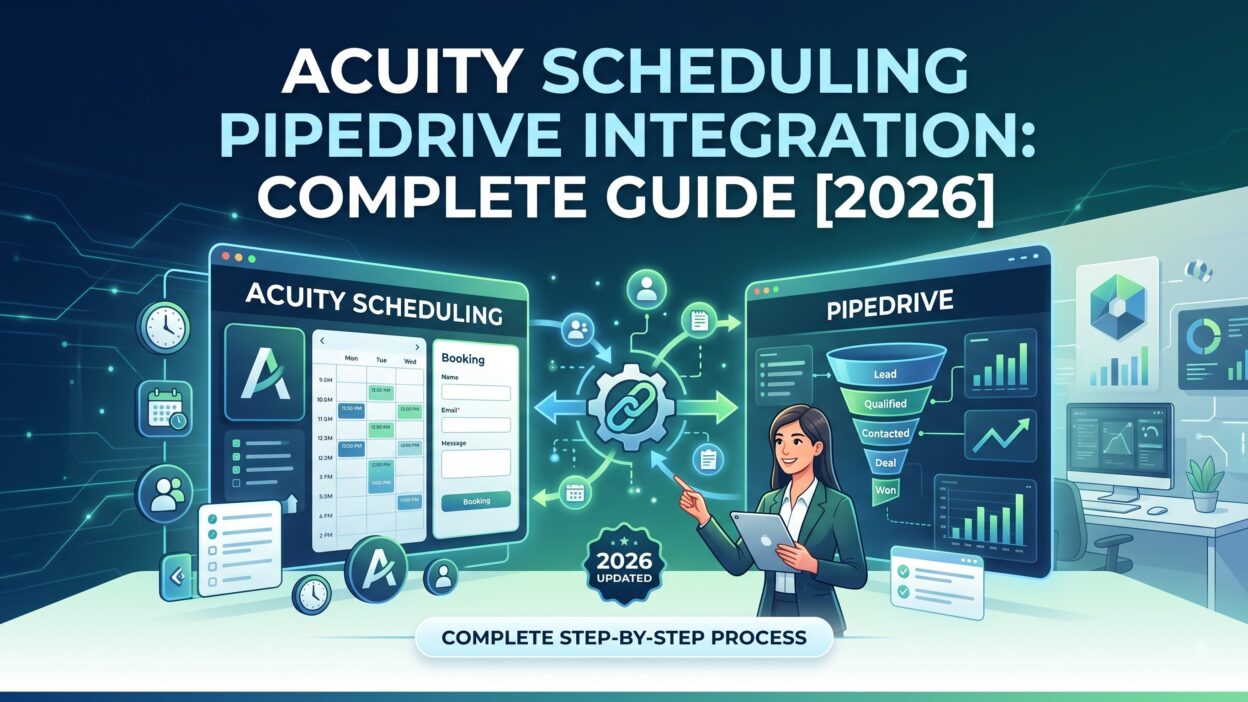
Acuity Scheduling Pipedrive integration links your Acuity booking calendar to your Pipedrive CRM account. Every appointment booked through Acuity creates or updates a matching contact in Pipedrive. Deal stages shift automatically once a call gets booked. No rep needs to copy client details by hand anymore.
This connection usually runs through Zapier or a native Pipedrive marketplace app, since Acuity and Pipedrive don’t sync directly out of the box. Once connected, both platforms exchange data within seconds of a booking. A prospect books a consultation through your Acuity link. Pipedrive creates a new person record or matches it to an existing one. The appointment shows up as an activity tied to that contact.
Sales teams rely on Acuity Scheduling Pipedrive integration to remove the gap between booking a call and tracking that call inside the CRM. Reps stop hunting through email for meeting details. Managers get accurate pipeline data without asking reps to update anything manually.
Why Your Business Needs Acuity Scheduling Pipedrive Integration
Manual appointment tracking slows down your sales process and creates blind spots. Acuity Scheduling Pipedrive integration removes those blind spots and keeps your pipeline current.
Save Time on Manual Data Entry
Reps lose hours each week typing appointment details into Pipedrive by hand. Acuity Scheduling Pipedrive integration removes this task completely. Every booking, reschedule, and cancellation flows into Pipedrive on its own. Your team spends that time on calls instead of data entry.
Improve Lead Response Time
Speed closes deals. A prospect who books a call through Acuity shows up in Pipedrive right away. The assigned rep gets notified within seconds. Acuity Scheduling Pipedrive integration cuts the gap between booking and follow-up down to almost nothing.
Better Visibility Across Your Sales Pipeline
Managers need to know which deals have upcoming calls booked. Acuity Scheduling Pipedrive integration makes this visible on every deal card. Reps see appointment history without leaving Pipedrive. Reporting stays accurate because appointment data flows straight from the source.
Prerequisites Before You Start Acuity Scheduling Pipedrive Integration
Check a few things before you connect Acuity and Pipedrive. You need an active Acuity Scheduling account with admin access to your calendar settings. Most Acuity plans support integration, though advanced automation needs a paid Acuity tier.
You also need a Pipedrive account with permission to install apps or connect Zapier. Confirm your Pipedrive user role allows this access, since some team members lack admin rights by default.
Review your existing Pipedrive fields and pipeline stages too. Clean field names make mapping far easier during setup. Remove duplicate custom fields before you begin, since messy fields cause sync confusion later.
Step-by-Step Acuity Scheduling Pipedrive Integration Setup Guide
Follow these steps in order. Each step depends on the last one, so skipping ahead often leads to connection errors.
Step 1: Choose Your Connection Method
Decide how you want to connect Acuity Scheduling Pipedrive integration. Zapier offers the fastest setup with no coding required. A native marketplace app offers deeper field mapping for larger teams. Pick Zapier if you want quick automation. Pick a native app if you need advanced deal-stage logic.
Step 2: Connect Your Acuity Account
Log into Zapier or your chosen integration tool. Search for Acuity Scheduling as your trigger app. Sign in with your Acuity credentials and approve the requested access. Grant permission for appointment data, since the integration needs this to trigger any action in Pipedrive.
Step 3: Connect Your Pipedrive Account
Choose Pipedrive as your action app next. Sign in with your Pipedrive credentials and approve the connection. Select whether new appointments should create a person, an activity, or a deal inside Pipedrive. Most teams choose all three for full visibility.
Step 4: Map Acuity Fields to Pipedrive Properties
Field mapping decides where your Acuity data lands inside Pipedrive. Match each Acuity field, like client name, email, and appointment type, to its matching Pipedrive property. Create custom fields in Pipedrive first if you need fields that don’t already exist. Check every mapped field carefully before you save, since wrong mapping sends data to the wrong place.
Step 5: Set Up Triggers for Deal Stage Changes
Decide what happens after a client books an appointment. Acuity Scheduling Pipedrive integration can move a deal from one stage to the next automatically. A booked consultation call can shift a deal from “Lead” to “Meeting Scheduled.” Build this logic inside your Zapier workflow or your native app settings.
Step 6: Test Your Acuity Scheduling Pipedrive Integration
Never skip testing. Book a test appointment through your own Acuity link. Check Pipedrive right after and confirm the new activity appears with the correct date and time. Test a cancellation too, and confirm Pipedrive updates the record properly. Fix any broken fields before your whole team starts using it.
How Data Flows Between Acuity Scheduling and Pipedrive
Understanding this data flow helps you troubleshoot fast and trust your pipeline reports.
Contact Creation and Updates
When a client books an appointment, Acuity sends their name and email to Pipedrive instantly. Pipedrive checks for an existing person with that email first. It updates the existing record if one already exists. It creates a new person if none exists. This process runs quietly in the background without any manual work.
Activity and Appointment Logging
Every booked appointment appears as a logged activity on the linked deal or contact. This includes the appointment date, time, and service type. A reschedule updates the same activity instead of creating a duplicate entry. A cancellation marks the activity as cancelled, so your history stays clean and accurate.
Deal Stage Updates
Acuity Scheduling Pipedrive integration can also shift deal stages automatically. Many sales teams trigger a stage change the moment a prospect books a consultation call. This keeps your pipeline reporting current without any rep touching the deal by hand.
Acuity Scheduling Pipedrive Integration Use Cases
Different teams use Acuity Scheduling Pipedrive integration in different ways. Here is how each type of business gets value from this connection.
Sales and Consulting Teams
Sales reps and consultants use Acuity Scheduling Pipedrive integration to book discovery calls without endless email threads. Every booked call logs against the right deal automatically. Reps walk into every call already knowing the full context.
Service-Based Businesses
Coaches, agencies, and service providers use this integration to track client bookings inside their sales pipeline. Every appointment ties back to a specific deal, so revenue tracking stays accurate from first call to closed deal.
Customer Onboarding Teams
Onboarding teams use Acuity Scheduling Pipedrive integration to track kickoff calls and check-ins. Every scheduled session logs on the client record automatically. Account managers see the full relationship history without switching between tools.
Common Acuity Scheduling Pipedrive Integration Issues and Fixes
Even a solid Acuity Scheduling Pipedrive integration runs into occasional problems. Here are common issues and how to fix them.
Contacts fail to sync when the email field doesn’t match exactly between both platforms. Check for typos or extra spaces in your field mapping. Reconnect the integration if syncing stops after a password change, since old authorization tokens expire over time.
Duplicate contacts appear when a client books using two different email addresses. Merge these records manually inside Pipedrive and set a rule to catch duplicates going forward. Missing appointment data usually points to a broken Zapier step or field mapping error. Open your automation settings and confirm every field still points to an active Pipedrive property.
Deal stages sometimes fail to update. This happens when your trigger condition doesn’t match the actual appointment type Acuity sends. Review your automation trigger and compare it against your live Acuity booking data.
Acuity Scheduling Pipedrive Integration Best Practices
Set clear naming conventions for your Acuity appointment types before you connect anything. Consistent names make mapping and reporting much easier later on.
Audit your Pipedrive fields every quarter. Remove unused custom fields and clean up duplicates, since a messy CRM slows down your entire Acuity Scheduling Pipedrive integration setup. Assign one team member to own this integration long term. This person handles updates, fixes broken automations, and trains new hires.
Test new automation steps on a sandbox contact before you push them live. This habit catches mapping mistakes early and protects your real client data from broken workflows.
Review your deal-stage triggers monthly. Sales processes shift often, and your Acuity Scheduling Pipedrive integration should match your current pipeline stages, not last year’s process.
Acuity Scheduling Pipedrive Integration vs Manual Booking Tracking
Some smaller teams still track appointments by hand inside Pipedrive notes. This works for a handful of bookings each week. It breaks down fast once volume grows.
Acuity Scheduling Pipedrive integration removes the guesswork completely. Every booking logs itself, every deal stage updates on schedule, and every rep sees the same accurate data. Manual tracking depends on reps remembering to update records, which rarely happens consistently across a full team.
Cost matters here too. Manual tracking costs nothing extra beyond your existing tools. Acuity Scheduling Pipedrive integration may require a Zapier subscription or a paid app, though the time saved usually justifies the cost for any team booking more than a few calls per week.
FAQs About Acuity Scheduling Pipedrive Integration
Does Acuity Scheduling Pipedrive integration require coding knowledge?
No, most teams set this up through Zapier without writing any code. Native marketplace apps also offer no-code setup for most common workflows.
How long does Acuity Scheduling Pipedrive integration setup take?
Most teams finish basic setup within thirty to forty-five minutes. Advanced field mapping and deal-stage automation can add extra time depending on your pipeline complexity.
Can I sync past Acuity appointments to Pipedrive?
No, Acuity Scheduling Pipedrive integration only syncs appointments booked after you activate the connection. Past appointment data does not transfer automatically.
Does this integration support multiple calendars?
Yes, Acuity Scheduling Pipedrive integration supports multiple calendars and staff members. Each booking routes to the correct Pipedrive owner based on your Acuity calendar settings.
What happens if I disconnect Acuity Scheduling Pipedrive integration?
Your existing Pipedrive data stays exactly as it is. New appointments stop syncing once you disconnect, so future bookings need manual entry until you reconnect the tools.
Can this integration trigger follow-up emails automatically?
Yes, a booked appointment can trigger a follow-up email sequence through Zapier or a connected email tool. This requires an extra automation step beyond the basic Acuity Scheduling Pipedrive integration connection.
Is Acuity Scheduling Pipedrive integration secure for client data?
Yes, both platforms use encrypted connections for every data transfer. Access permissions stay limited to what you approve during setup, so you control exactly what information moves between systems.
Read More:-How emasters Supercharges Sales: A Step-by-Step Breakdown
Conclusion

Acuity Scheduling Pipedrive integration saves your sales team hours of manual tracking every single week. Contacts update on their own. Appointments log automatically. Deal stages shift the moment a client books a call. This guide covered the full setup process, data flow, common issues, and best practices you need to run this integration well.
Start with clean Pipedrive fields and a clear mapping plan. Test every step before you roll it out to your full team. Review your automation triggers on a regular basis as your sales process changes. A well-maintained Acuity Scheduling Pipedrive integration keeps your pipeline accurate and your team focused on closing deals instead of tracking appointments by hand.