
Introduction
TL;DR WhatsApp stickers are everywhere right now. People love sending them. They make conversations fun, expressive, and personal. But most users rely on limited sticker packs. Building your own changes that entirely.
A WhatsApp Sticker Generator using Python gives you full creative control. You decide the images. You control the style. You automate the process with code that works exactly the way you want it to.
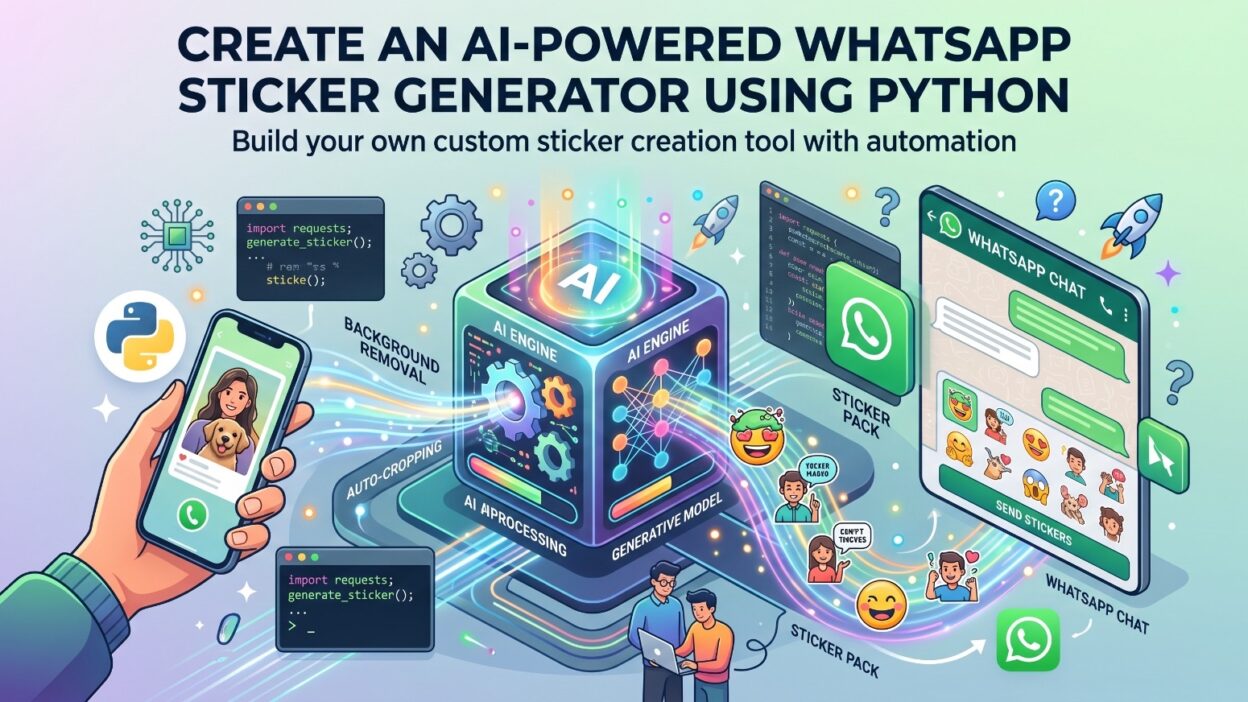
This project sits at a sweet spot. It combines Python programming, AI-powered image processing, and WhatsApp’s sticker format requirements — all in one buildable project. Even if you are an intermediate Python developer, this guide will walk you through every layer clearly.
This blog covers the full picture. You will understand the tools involved, the code logic, the AI integration, the file format requirements, and the deployment steps. You will also find answers to the most common questions developers ask when starting this kind of project.
By the end, you will have a clear roadmap. You can build a working WhatsApp Sticker Generator using Python without hitting avoidable roadblocks.
Let us get into it.
Why Build a WhatsApp Sticker Generator using Python
The Growing Demand for Custom Stickers
WhatsApp has over two billion active users worldwide. Stickers represent one of the most popular forms of expression on the platform. The demand for personalized sticker packs keeps growing. Default sticker packs never fully satisfy that demand.
Developers who build a WhatsApp Sticker Generator using Python tap into a real user need. Custom sticker tools serve individuals, businesses, content creators, and community managers. A business can turn its brand mascot into a sticker pack. A content creator can convert memorable moments into shareable stickers. A community manager can keep group chats engaging with event-specific stickers.
Python Makes This Accessible
Python sits at the top of the language choices for this kind of project. Its library ecosystem covers everything required. Image processing libraries handle background removal and resizing. AI libraries handle style transfer and image enhancement. Packaging libraries handle the final sticker file creation.
No other language offers that combination of simplicity and power at the same time. Python scripts handle the heavy lifting. Developers focus on logic rather than syntax battles.
Learning Value for Developers
Building a WhatsApp Sticker Generator using Python teaches several practical skills simultaneously. You get hands-on experience with image manipulation. You learn how to integrate AI models into real-world applications. You understand file format specifications and how to meet them programmatically.
This project is not a toy exercise. It produces a real, usable output — a sticker pack that works on actual WhatsApp installations. That combination of learning value and practical output makes it one of the more satisfying Python projects for intermediate developers.
Understanding WhatsApp Sticker Format Requirements
The Technical Specifications You Cannot Ignore
WhatsApp enforces strict format rules for sticker files. Ignoring these rules means your stickers simply will not work. Understanding them upfront saves significant debugging time.
Each sticker must be a WebP image file. The dimensions must be exactly 512 by 512 pixels. The file size must stay below 100 kilobytes. The sticker must have a transparent background — PNG transparency converted to WebP format.
A sticker pack consists of individual sticker files bundled with a metadata file. The metadata file defines the pack name, publisher name, tray icon, and individual sticker file references. WhatsApp reads this metadata to display the sticker pack correctly within its interface.
Tray Icon Requirements
Each sticker pack needs a tray icon. This icon appears in the WhatsApp sticker panel. The tray icon must also be a WebP file. Its dimensions must be exactly 96 by 96 pixels. Its file size must stay below 50 kilobytes.
Getting these specifications right matters. A WhatsApp Sticker Generator using Python must handle all these requirements automatically. The code should resize images, strip or convert backgrounds, compress files, and validate output dimensions without manual intervention for each sticker.
The contents.json File Structure
The metadata file is called contents.json. It sits at the root of the sticker pack directory. The file holds the pack identifier, name, publisher, publisher email, website URL, tray icon filename, and an array of sticker objects. Each sticker object references a filename and an array of emojis associated with that sticker.
Your Python script must generate this file automatically. Writing it by hand for every sticker pack defeats the purpose of building a generator. The script should accept pack metadata as input and produce a correctly structured contents.json output every time.
Tools and Libraries You Need
Core Python Libraries for Image Processing
The Pillow library handles the foundational image operations. It resizes images, converts formats, manages transparency layers, and handles color mode conversions. Pillow is the backbone of the image processing pipeline in a WhatsApp Sticker Generator using Python.
Install Pillow with pip. It has no complex dependencies and works cleanly across operating systems. Most Python developers already have it available in their development environments.
The rembg library handles background removal. It uses a pre-trained deep learning model called U2Net. This model identifies the foreground subject in any image and removes the background with strong accuracy. The result is a transparent-background image ready for sticker conversion.
AI Libraries for Enhanced Sticker Creation
The diffusers library from Hugging Face opens the door to AI-generated stickers. You can use Stable Diffusion models to generate custom sticker art from text prompts. A user types a description. The model generates an image. Your pipeline converts that image into a properly formatted sticker.
The transformers library complements this setup. It handles model loading, tokenization, and inference pipeline management. Together, diffusers and transformers give your WhatsApp Sticker Generator using Python genuine AI-powered image generation capability.
Supporting Libraries and Tools
The json library handles metadata file creation. It is part of Python’s standard library — no installation needed. The os and pathlib libraries manage directory creation, file path handling, and batch processing workflows.
The requests library handles image downloads from URLs when users provide web image sources rather than local files. The io library manages in-memory file operations for efficiency.
For image compression, the pywebp library provides Python bindings for WebP encoding. This library gives you fine-grained control over WebP quality settings, compression levels, and transparency handling — all critical for meeting WhatsApp’s file size limits.
Setting Up Your Development Environment
Python Version and Virtual Environment
Use Python 3.9 or higher for this project. Earlier versions have compatibility gaps with some AI libraries. Python 3.10 and 3.11 offer the cleanest compatibility across all required libraries.
Create a dedicated virtual environment for this project. Virtual environments prevent dependency conflicts between projects. They also make your project portable — another developer can recreate your environment from a requirements.txt file without issues.
Run python -m venv sticker_env in your project directory. Activate the environment with source sticker_env/bin/activate on Mac or Linux. Use sticker_env\Scripts\activate on Windows.
Installing Required Libraries
Install all dependencies in one step using a requirements.txt file. The file should list Pillow, rembg, diffusers, transformers, torch, accelerate, pywebp, requests, and scipy. Run pip install -r requirements.txt to install everything at once.
The torch installation may take several minutes. It is a large library. If you plan to run AI image generation on a GPU, install the CUDA-compatible version of PyTorch from the official PyTorch website. GPU acceleration dramatically speeds up image generation.
Project Directory Structure
Organize your project clearly from the start. Create a main script file at the root level. Create an input folder for source images. Create an output folder for finished sticker packs. Create a models folder for any locally cached AI model weights. Create a config file for sticker pack metadata settings.
This structure keeps your WhatsApp Sticker Generator using Python clean and maintainable as the project grows.
Building the Core Image Processing Pipeline
Loading and Validating Input Images
The pipeline starts with input handling. Your script should accept multiple input types — local file paths, URLs, and base64-encoded image strings. Build a unified input handler that normalizes all three input types into a Pillow Image object.
Validate input dimensions before processing. Images below 512 pixels in either dimension will lose quality after upscaling. Log a warning when input images are smaller than the target output size. Let the user decide whether to proceed or provide a higher-resolution source.
Convert all input images to RGBA mode immediately. RGBA includes the alpha channel required for transparency. Operating in RGBA mode throughout the pipeline prevents format conversion errors at later stages.
Background Removal with rembg
Pass the RGBA image to rembg’s remove function. This function runs the U2Net model internally and returns an image with the background replaced by transparency. The result is a clean foreground subject on a transparent canvas.
The WhatsApp Sticker Generator using Python benefits enormously from this step. It transforms any photo into a sticker-ready image without manual editing. Portrait photos become character stickers. Product photos become brand stickers. The background removal step is where AI does its most visible work in the pipeline.
Fine-tune the removal result with a post-processing step. Apply a slight edge blur to smooth the foreground boundary. Hard edges look artificial in sticker format. A two-pixel Gaussian blur on the alpha channel alone creates a more natural, polished edge.
Resizing to 512 by 512 Pixels
Resize the background-removed image to exactly 512 by 512 pixels. Use the LANCZOS resampling filter for the highest quality downscaling. This filter preserves sharpness better than bilinear or nearest-neighbor alternatives.
Handle aspect ratio carefully. Images that are not square require padding rather than stretching. Add transparent padding to the shorter dimension first. Center the subject within the 512 by 512 canvas. This approach maintains the subject’s proportions while meeting WhatsApp’s dimension requirement.
WebP Conversion and Compression
Save the processed image as a WebP file. Set the quality parameter to 80 as a starting point. Check the output file size. If the file exceeds 100 kilobytes, reduce the quality parameter incrementally until the file fits within the limit.
Build a compression loop that runs automatically. The loop checks file size after each save attempt. It reduces quality by five points per iteration. It stops when the file size falls below 100 kilobytes or when quality drops below 50, at which point it logs a warning about image quality compromise.
Adding AI-Powered Sticker Generation
Text-to-Sticker Generation with Stable Diffusion
The AI generation layer makes your WhatsApp Sticker Generator using Python genuinely powerful. Users describe a sticker concept in plain text. The AI generates an image matching that description. The pipeline processes it into a finished sticker.
Use the StableDiffusionPipeline from the diffusers library. Load a model optimized for illustration or cartoon-style output. The dreamlike-art/dreamlike-anime-1.0 model produces sticker-appropriate art styles. The prompthero/openjourney model generates artistic outputs well-suited to sticker aesthetics.
Load the pipeline once and reuse it across multiple generation requests. Model loading is expensive — it takes several seconds even on fast hardware. Keeping the pipeline in memory eliminates repeated loading overhead when generating multiple stickers in one session.
Crafting Effective Prompts for Sticker Art
Prompt quality determines output quality. Guide your users with prompt formatting recommendations. Sticker-style prompts benefit from specific style keywords. Adding “sticker art,” “flat design,” “clean lines,” “white background,” “cartoon style,” and “vibrant colors” to any concept prompt dramatically improves sticker suitability.
Negative prompts matter equally. Specify what the model should avoid — “photorealistic,” “blurry,” “dark background,” “complex texture,” “shadows.” The WhatsApp Sticker Generator using Python should build these style keywords and negative terms into its prompt construction logic automatically, so users only need to describe the concept itself.
Post-Processing AI-Generated Images
AI-generated images rarely need background removal the same way photos do. Many illustration-style models produce images with simple or white backgrounds. A color-based background removal approach works better here than U2Net.
Use Pillow’s ImageDraw and floodfill approach for simple background removal on illustrated outputs. Alternatively, apply a threshold-based transparency mask for predominantly white or light backgrounds. Test both approaches against your chosen model’s typical output style and use the one that produces cleaner edges.
Packaging the Sticker Pack
Generating the contents.json Metadata File
Build a Python function that takes pack metadata as a dictionary and writes a correctly structured contents.json file. The function should accept pack name, publisher name, publisher email, website URL, privacy policy URL, tray icon filename, and a list of sticker filenames with associated emojis.
Validate the sticker count before writing. WhatsApp requires a minimum of three stickers per pack. It supports a maximum of thirty stickers per pack. Your WhatsApp Sticker Generator using Python should enforce these limits and raise informative errors when the sticker count falls outside the acceptable range.
Structuring the Output Directory
Create the output directory with the pack identifier as the folder name. Place all sticker WebP files inside this directory. Place the tray icon WebP file inside the same directory. Write the contents.json file to the root of this directory.
Compress the entire directory into a zip archive. This archive format is what WhatsApp-compatible sticker apps use for importing custom packs. Keep the original directory as well for inspection and debugging purposes.
Transferring Stickers to WhatsApp
WhatsApp does not allow direct sideloading of sticker packs on most platforms. The standard approach uses a companion app. On Android, apps like Sticker Maker and Personal Stickers import custom packs and register them with WhatsApp. On iOS, similar apps exist in the App Store.
Your Python-generated sticker pack directory must match the format these companion apps expect. The format is consistent with WhatsApp’s own developer specifications. Following the specifications correctly means your output works with any compliant import tool.
Testing and Debugging Your Generator
Validating Output Files Automatically
Build automated validation into your WhatsApp Sticker Generator using Python. After processing each sticker, run a validation check. Confirm the file is WebP format. Confirm the dimensions are exactly 512 by 512 pixels. Confirm the file size is below 100 kilobytes. Confirm the image has an alpha channel.
Log validation results for every sticker in the batch. A simple pass or fail log per sticker makes debugging batch processing issues much faster. When a sticker fails validation, the log should indicate which specific check failed and the actual measured value.
Common Issues and Fixes
The most frequent issue is file size exceeding the 100-kilobyte limit. This happens with complex images at high quality settings. The compression loop solves this automatically for most cases. For extreme cases, try reducing the canvas size slightly below 512 pixels — WhatsApp enforces a maximum dimension but accepts smaller stickers.
Transparency issues appear when the input image mode is not properly converted to RGBA before processing. Always enforce the mode conversion at the start of the pipeline. Test with images that have existing transparent regions to confirm your pipeline preserves rather than fills transparency.
FAQ Section
Can I build a WhatsApp Sticker Generator using Python without AI tools?
Yes. The core pipeline works entirely with Pillow and rembg. You need no AI image generation library to convert existing photos into stickers. The AI layer using Stable Diffusion is an enhancement. It adds text-to-sticker generation capability. The base version of a WhatsApp Sticker Generator using Python needs only Pillow for image processing and rembg for background removal.
What image formats work as input for the sticker generator?
The pipeline accepts JPEG, PNG, BMP, TIFF, and GIF as input formats. Pillow handles all these formats natively. PNG files with existing transparency retain their alpha channel through the pipeline. JPEG files lack transparency — the background removal step creates the required transparent background from JPEG inputs.
Does the generator work on Windows, Mac, and Linux?
All required libraries support Windows, Mac, and Linux. Python’s cross-platform nature means your WhatsApp Sticker Generator using Python runs identically across operating systems with minor path handling differences that pathlib resolves automatically. GPU acceleration for AI generation requires CUDA on Windows and Linux. Mac users with Apple Silicon benefit from MPS (Metal Performance Shaders) acceleration with compatible PyTorch builds.
How many stickers can I generate in one batch?
WhatsApp caps sticker packs at thirty stickers. Your generator can process batches of any size, but the packaging function should split outputs into multiple packs if the input count exceeds thirty. Build this splitting logic into the packaging function from the beginning — retrofitting it later adds complexity.
Can I use this project commercially?
The Python libraries involved are open-source under permissive licenses. The AI models carry their own licenses — check the specific model card on Hugging Face before commercial use. WhatsApp’s terms of service govern how sticker packs can be used within the platform. Building and distributing custom sticker tools does not inherently violate WhatsApp’s terms, but selling AI-generated stickers commercially requires checking model-specific license terms.
Read More:-Agent Memory Patterns in Cognitive Science and AI Systems
Conclusion

A WhatsApp Sticker Generator using Python combines real technical skill with a genuinely useful output. This project is not a coding exercise that ends in a text file. It ends in something visual, shareable, and immediately usable.
The pipeline you build here touches multiple important Python skills. Image processing with Pillow teaches you how digital images actually work — pixel dimensions, color modes, transparency, and compression. Background removal with rembg gives you practical experience with AI-powered computer vision. Stable Diffusion integration teaches you how to work with large generative AI models inside a real application.
The format requirements WhatsApp enforces are strict. That strictness is actually valuable for a learning project. It forces you to write precise, validated code. Your generator either produces compliant output or it does not. There is no ambiguous middle ground. That clarity makes testing and debugging straightforward.
The AI generation layer is where this project becomes genuinely exciting. Text-to-sticker generation represents a category of tool that was not practically buildable by individual developers just a few years ago. Today, open-source models make it accessible with a few pip installs and a handful of configuration lines.
Start with the core pipeline. Get basic photo-to-sticker conversion working first. Add background removal. Validate outputs automatically. Package a test sticker pack and import it using a companion app. Confirm everything works end to end before adding the AI generation layer.
Once the pipeline is solid, layer in Stable Diffusion. Experiment with different models and prompts. Observe how style keywords change output quality dramatically. Build a simple command-line interface that makes the full tool easy to use without touching the code.
Your WhatsApp Sticker Generator using Python will be something you actually use. That is the best kind of project to build.