Introduction
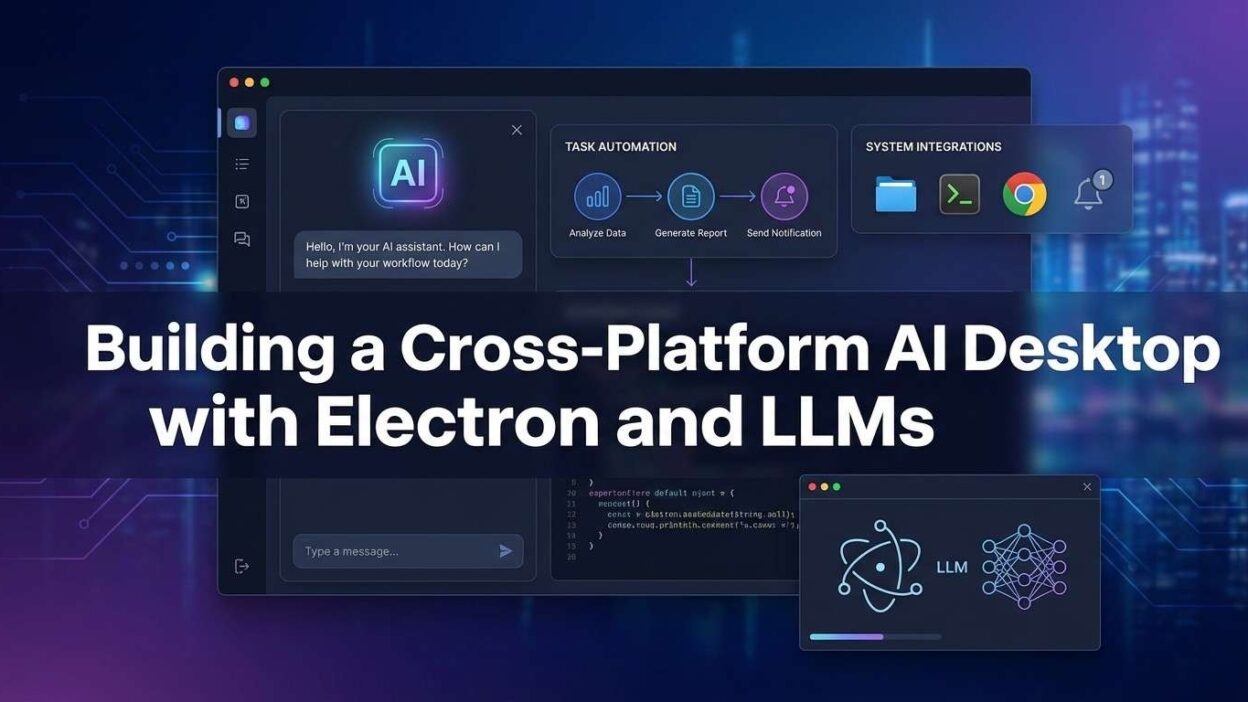
TL;DR AI is no longer a browser-only feature. Developers want AI living directly on the desktop — offline-capable, native-feeling, and deeply integrated with the operating system. Building a cross-platform AI desktop assistant with Electron and LLMs gives you exactly that. You get a single JavaScript codebase that ships on Windows, macOS, and Linux. You get full LLM power running either in the cloud or locally. This guide walks you through the entire build — from project structure to production packaging.
Table of Contents
Why Electron Is the Right Choice for AI Desktops
Desktop AI requires tight system integration. It needs access to the clipboard, the file system, local databases, and system notifications. A web app cannot touch any of those things reliably. A native app takes months to build in two or three languages. Electron bridges that gap completely.
Electron bundles Chromium and Node.js into a single runtime. Your UI lives in a browser context. Your system logic lives in Node.js. Both communicate over a secure internal bridge called IPC. The result feels native and runs everywhere.
For a cross-platform AI desktop assistant with Electron and LLMs, Electron is ideal for another reason. Node.js has excellent HTTP client libraries and streaming support. Both are essential for talking to LLM APIs in real time. You get token-by-token streaming responses with minimal boilerplate.
Performance is a common concern. Modern Electron apps are fast when architected properly. The key is keeping LLM calls and heavy processing in the main process. Keep the renderer lean. Respect the process boundary. Follow that pattern and your app stays snappy even under LLM load.
// note Electron powers VS Code, Slack, Figma, and GitHub Desktop. Those are not lightweight toys. They are serious production applications. The platform is mature and battle-tested at scale.
Architecture of the Assistant
A well-designed cross-platform AI desktop assistant with Electron and LLMs needs a clean architecture from day one. Retrofitting structure is painful. Get it right early.
The three-layer model works best. The main process owns all system resources, LLM API calls, file I/O, and persistent storage. The renderer process owns the UI, user input, and chat history display. The preload script acts as a typed, secure bridge between the two. Nothing crosses the IPC boundary without being declared in the preload.
Choosing Your Data Layer
Conversation history needs a persistent home. SQLite via the better-sqlite3 package is the right choice for desktop apps. It runs in-process, has zero dependencies, and handles thousands of rows without breaking a sweat. JSON files work for simple prototypes. They break down fast in production.
Project Setup and Dependencies
Start with the official Electron Forge scaffold. It gives you a working app with the right structure in under two minutes.
The openai package handles both the OpenAI API and any OpenAI-compatible local model server like Ollama. better-sqlite3 stores conversation history. electron-store manages user preferences in a native config location. dotenv loads environment variables without committing secrets to git.
Your package.json main entry must point to your compiled main process file. Electron Forge handles the webpack compilation automatically. Do not reference TypeScript or raw ES modules directly from the main field. Always reference the compiled output.
Project Structure
The Main Process — System Access and IPC
The main process is the brain of any cross-platform AI desktop assistant with Electron and LLMs. It boots the app, creates the browser window, registers IPC handlers, and manages the application lifecycle.
javascript — src/main/index.js
Notice that nodeIntegration is always false. Never enable it. This one setting is the difference between a secure app and a massive security hole. Use the preload script and contextBridge for every renderer-to-main communication.
IPC Handler Registration
Register all IPC handlers in a dedicated file. Do not scatter ipcMain.handle() calls across your codebase. Centralised handlers are easier to audit, test, and document.
javascript — src/main/ipc-handlers.js
Wiring the LLM Layer
The LLM layer is the core differentiator of a cross-platform AI desktop assistant with Electron and LLMs. This is where user input transforms into intelligent output. Streaming is non-negotiable for a good user experience. No one wants to stare at a spinner for five seconds.
Each token fires the onToken callback. The IPC handler pushes that token to the renderer via event.sender.send. The renderer appends it to the current message bubble. The user sees text appear letter by letter. That experience feels alive and responsive.
Model Abstraction Layer
Smart developers build a model abstraction layer early. This layer exposes a single streamChat interface. The implementation behind it can swap between OpenAI, Anthropic, Google Gemini, or a local Ollama server. You change one line — the model provider — and the rest of the app stays identical.
Building the Chat UI in the Renderer
The renderer is a standard browser environment. You use HTML, CSS, and vanilla JavaScript or any frontend framework. React and Vue work perfectly inside Electron’s renderer. Keep the renderer lightweight. Its job is display and input handling — nothing more.
The Preload Bridge
The preload script defines every function the renderer can call. Declare them explicitly. Do not expose ipcRenderer directly to the renderer. That would defeat the security model entirely.
Going Offline with Local Models
One major advantage of a cross-platform AI desktop assistant with Electron and LLMs is the ability to run fully offline. Ollama makes this practical. It runs a local model server on your machine and exposes an OpenAI-compatible HTTP API on localhost:11434.
Switching from OpenAI to Ollama requires two changes. Update the baseURL in your OpenAI client config and set apiKey to 'ollama' (any non-empty string works). Change the model name to match a locally pulled model like llama3 or mistral. Nothing else in your codebase changes.
Ollama supports dozens of models. Llama 3.2 runs well on a machine with 8 GB of RAM. Mistral 7B delivers excellent instruction-following for productivity tasks. Phi-3 Mini is tiny and fast on lower-spec hardware. Match the model to your target user’s machine.
Build a provider selector in your settings panel. Let users choose between cloud API and local model. Store their preference in electron-store. Load it at startup. Your cross-platform AI desktop assistant with Electron and LLMs becomes genuinely portable and privacy-first.
Context, Memory, and Conversation State
LLMs have no memory between API calls. Every call must carry the full conversation context. Your app must manage that context carefully. Send too little and the model loses coherence. Send too much and you hit token limits and waste money.
Context Window Management
Store every message in SQLite immediately after it lands. When building the next API call, fetch the last N messages from the database and construct the messages array. Cap the context at a sensible token count — around 4,000 tokens works for most models. Summarise older conversation chunks into a single system message when the history grows long.
System Prompt Engineering
Your system prompt defines the assistant’s persona, capabilities, and constraints. Write it carefully. Include the user’s name if you capture it during onboarding. Include the current date and time using new Date().toLocaleString(). Include the user’s OS if your assistant uses OS-specific commands. Small context injections create a dramatically more useful assistant.
Security Hardening
Security in Electron deserves serious attention. A cross-platform AI desktop assistant with Electron and LLMs handles user data, API keys, and potentially sensitive conversation content. Get security right from the start.
Essential Security Checklist
Always set contextIsolation: true in your BrowserWindow webPreferences. Always set nodeIntegration: false. Always use contextBridge for IPC. Never use remote module — it is deprecated and dangerous. Enable a strict Content Security Policy in your HTML files. This prevents XSS attacks from executing injected scripts.
Sanitise all user input before including it in LLM prompts. A user can craft a message that attempts prompt injection. Strip or escape special characters. Set a maximum input length. Log unusual patterns. Treat your LLM API endpoint like any other sensitive external service.
Use electron-store with encryption for sensitive user preferences. Use the system keychain via keytar for API key storage. Never write API keys to plaintext files. Delete sensitive data from memory after use. These habits matter in a desktop context where other processes share the machine.
Packaging for All Three Platforms
The final step in shipping a cross-platform AI desktop assistant with Electron and LLMs is packaging. Electron Forge handles the entire build pipeline. It produces .dmg files for macOS, .exe installers for Windows, and .deb or .AppImage for Linux.
Run npm run make to build for the current platform. Set up GitHub Actions to build all three platforms simultaneously in CI. Push a tag and get three installers back automatically. That pipeline makes releasing new versions painless.
Auto-Update Integration
Ship auto-update from the beginning. Users rarely manually download updates. Use update-electron-app with a GitHub releases backend. Call it at startup. Users receive silent background updates. Your entire user base stays on the latest version without effort.
Frequently Asked Questions
Is Electron too heavy for an AI desktop assistant?
Electron ships with Chromium, so the baseline binary is around 80–150 MB. For an AI assistant that streams LLM responses, that size is entirely reasonable. The user gets a full native-feeling application with cross-platform support. Tauri is a lighter alternative if binary size is a hard constraint, but its ecosystem is smaller and its IPC model is more complex.
Which LLM API works best for a cross-platform AI desktop assistant with Electron and LLMs?
OpenAI’s GPT-4o is the best default choice for its balance of speed, capability, and streaming support. Anthropic Claude excels at long documents and nuanced reasoning. Google Gemini 1.5 Pro handles very long contexts well. For privacy-first deployments, Ollama with Llama 3 or Mistral 7B delivers strong results fully offline.
Can the assistant access local files and the clipboard?
Yes. The main process runs in Node.js and has full access to the filesystem, clipboard via Electron’s clipboard module, shell commands via child_process, and system notifications. You expose these capabilities through the IPC bridge and give the user clear permission controls. File access and shell execution should require explicit user opt-in.
How do I handle LLM costs in a desktop app?
Build a usage tracker into your main process. Count tokens on every request and response. Store cumulative usage in electron-store. Display it in settings. Let users set a monthly spending cap. When the cap is close, prompt the user. Alternatively, ship local model support via Ollama as the free tier. Many users choose local models by default and only pay for cloud on demanding tasks.
What is the best way to test an Electron LLM app?
Test the main process logic with standard Node.js test runners like Vitest or Jest. Mock the LLM client to return predefined token streams. Test IPC handlers in isolation without a browser window. For end-to-end testing, use Playwright’s Electron support. Playwright can launch your app, interact with the UI, and assert on rendered output across all three platforms.
How do I add voice input to my cross-platform AI desktop assistant with Electron and LLMs?
Use the Web Speech API in the renderer for basic speech-to-text. It works natively in Chromium with no dependencies. For higher accuracy, use OpenAI Whisper. Record audio in the renderer using the MediaRecorder API. Send the audio buffer to the main process via IPC. Call the Whisper API endpoint and return the transcript. Plug that transcript into your normal chat flow.
Can I ship this app on the Mac App Store or Microsoft Store?
Mac App Store requires sandboxing, which restricts filesystem access significantly. Most AI assistants needing broad system access cannot ship through MAS without heavy modification. Direct distribution with notarisation is the standard approach for Electron AI apps on macOS. Microsoft Store supports Electron apps via MSIX packaging. Electron Forge’s maker-appx handles the conversion.
Read More:-How to Use MemGPT for Infinite Context in AI Conversations
Conclusion
Building a cross-platform AI desktop assistant with Electron and LLMs is achievable in a week. The technology stack is mature, well-documented, and genuinely powerful. Electron handles the cross-platform complexity. LLM APIs handle the intelligence. Your job is wiring them together cleanly and securely.
Start with the three-layer architecture. Build the IPC bridge first. Get streaming tokens flowing before you style a single pixel. Once the core chat loop works, everything else — offline models, file access, voice input, auto-update — layers on cleanly.
The market wants desktop AI tools that feel native, respect privacy, and work offline. A well-built cross-platform AI desktop assistant with Electron and LLMs delivers all three. No web app can match the system integration depth that Electron provides. That depth is your differentiator.
The code patterns in this guide represent production-quality practices. Use them as your foundation. Extend them for your specific domain — coding assistant, writing companion, research tool, or enterprise productivity app. The underlying architecture scales to all of them.